
Greetings from DCAMM Contractor Certification!
Adding an Alert to your account is very easy. The steps below show you how.
Add an Alert to your account
There are 2 ways to add an Alert to your file
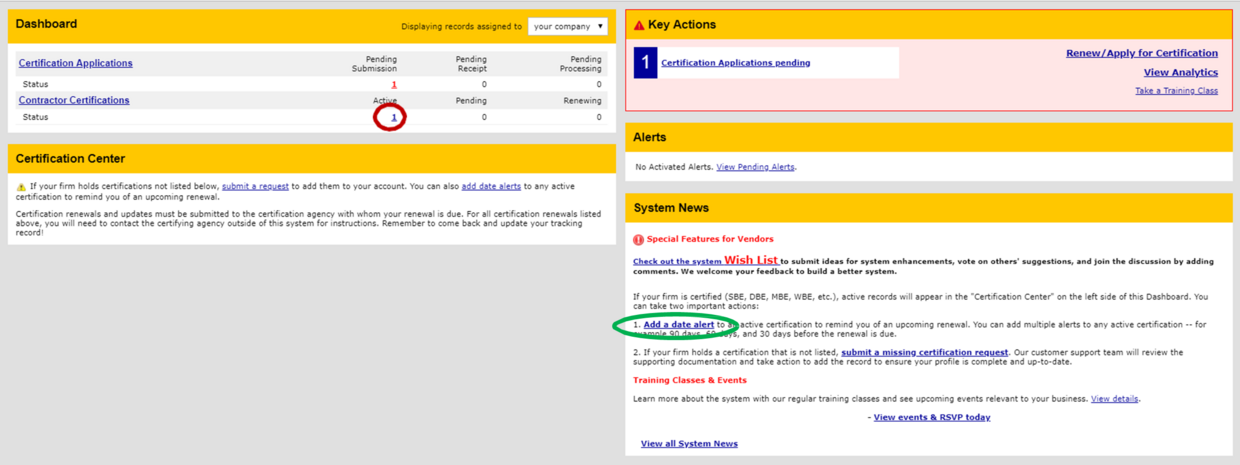
- Click your Active Certifications to go to your Vendor Profile (Red Circle)
- Or click the Add a Date Alert under System News to go to your Vendor Profile (Green Oval)

- Under Actions Click View for your current Certification

- You will be taken to Certification: View
- Click the Add Date Alert Button
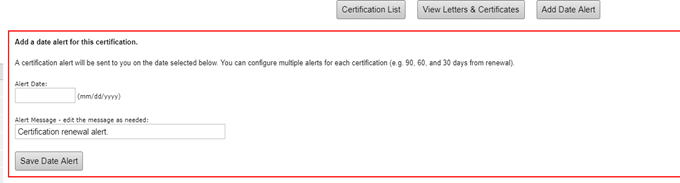
- You can select any Alert Date you would like or edit the Alert Message for a custom message
- Click Save Date Alert button and you will be back at Certification: View
- You will now see a red box with the Alert you just created there

- When you return to your Vendor Profile: Certifications you will see your alert
