
DCMS Consultant Workforce Reporting
DCAMM’s Contractor Management System is the agency’s platform for MBE/WBE Contract and Certified Payroll and Workforce Compliance as of July 1, 2017. The agency transitioned to this system for compliance reporting on DCAMM and DCAMM assisted construction and design contracts. Prime Contractors, Consultants and Subcontractors are responsible to learn and self-report participation in the system.

Introduction
DCAMM will complete the contract set up in the contract management portion of DCMS (B2GNow). Once the contract is synced to the payroll reporting portion (LCPtracker), workforce reporting can begin. Training and support are offered by the system vendors directly accessible upon login, in addition to the user guide and recorded webinar available on DCAMM’s website.
The Commonwealth of Massachusetts has diverse workforce participation goals on public projects of 15.3% and 6.9% for Minorities and Women, respectively. This system was designed for reporting contractor trade labor via weekly certified payroll reports. However, due to DCAMM’s reporting requirements for consultant’s workforce, the system has been customized to accommodate this type of reporting as well. Only demographic data is required for designer workforce reporting; wage information is not required.
The process for entering this monthly report will consist of several steps:
- eSignature Setup (only done the first time you enter the system)
- Employee Setup (only done once for every employee)
- Define a Work Order “Task” (done once per Notice to Proceed “NTP”, if applicable)
- Report Creation (done once a month)
eSignature Setup
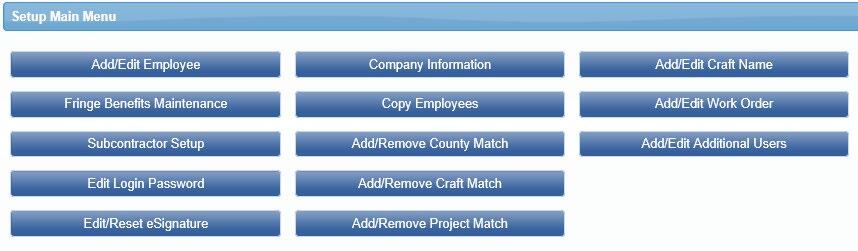
Prior to submitting your first monthly report, you must create eSignature under Certification tab. Click on the same “Set Up” tab mentioned in Step 1. Next click on the “Edit/Reset eSignature” button.
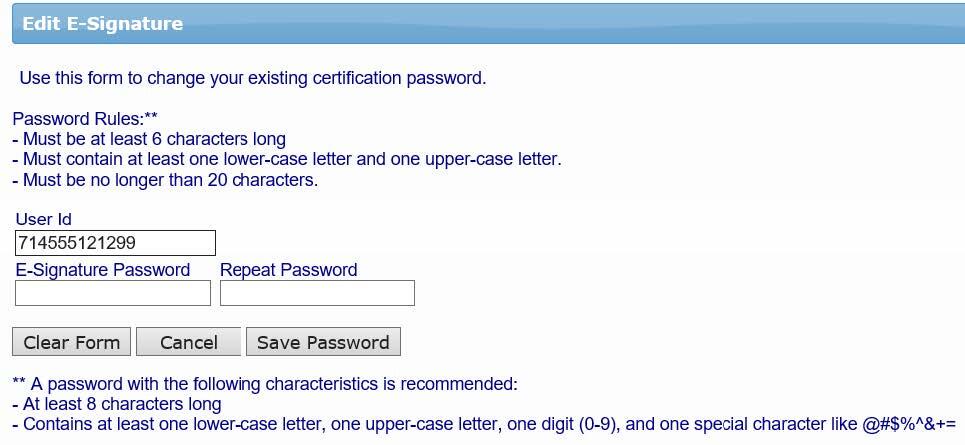
You will be prompted to enter in a password twice, and click on “Save Password”.
Employee Setup
Access the labor reporting platform (LCPtracker) of DCMS to Set Up Employees under the Setup tab. Click on the “Setup” tab to start.

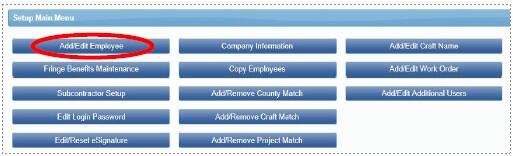
Once in the Setup Main Menu, click on the “Add/Edit Employee” button.
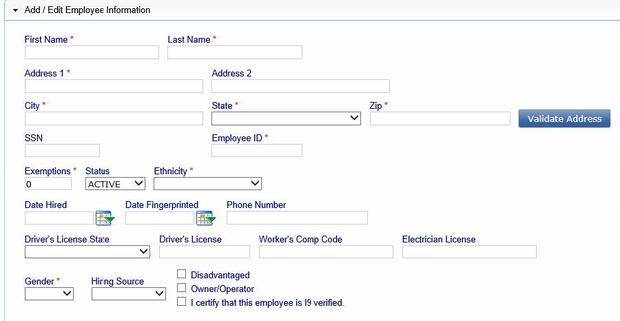
Once in this area, all fields marked with a red asterisked (*) are required. You will not be able to save your employee record if they are not filled out. Following is a comprehensive list of all fields to be included:
- First name
- Last name
- Address 1 (use Company address)
- City (use Company City)
- State (use Company State)
- Zip (use Company Zip)
- Employee ID (If your company doesn’t use Employee ID numbers, please assign during this setup)
- Exemptions (Leave this as a zero.)
- Ethnicity
- Gender
- I-9 Verification is required - check box
The next required section is for Demographic Classification information. Click on the “Demographic Classification” button.
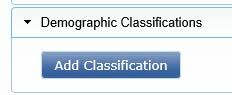
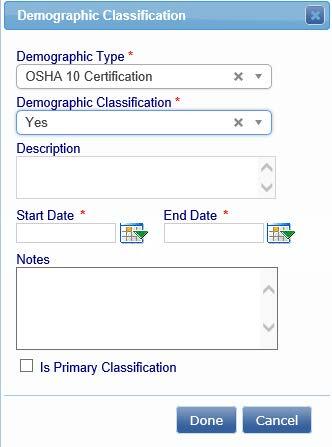
A separate field box will pop up. Click on the first dropdown list, titled “Demographic Type”. You will be prompted to choose either “OSHA 10 Certification” or “Veteran Status”. When choosing “OSHA 10 Certification”, you will then be able to click on the second dropdown list, where your choices for “Demographic Classification” are now “Yes” or “No”. Make the appropriate choice, enter the applicable start and end dates if prompted, and click on the “Done” button.
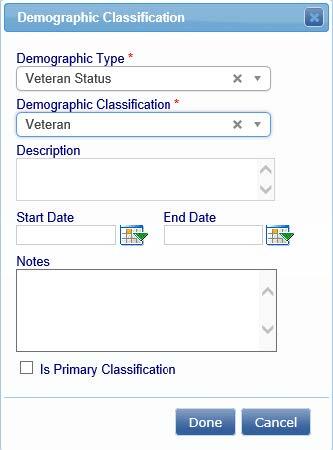
You will need to repeat this process one more time to choose the appropriate response for “Veteran Status”. The choices from the second dropdown list will now be “Not a Veteran”, “Service Disabled Veteran” or “Veteran”. Once you have chosen your response, click on the “Done” button.
You are now done entering all the required employee information.
Define A Work Order “Task”
Bundled Contracts aka Blanket/Master Agreements, i.e., House Doctor, requires Task set up prior to submission of first report. Refer to training manual under Admin Support Documents for further instruction on Defining a Work Order. (To locate your Work Order/NTP number(s), please see the NTP you received from DCAMM.)
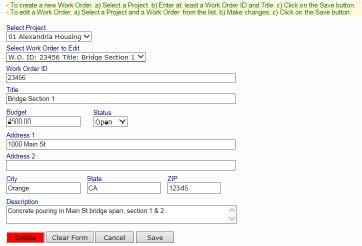
The prime contractor may define the work orders. Simply go to Set Up > Add/Edit Work Order to open form below.
- Naming Conventions
- Work Order ID: NTP and/or DCAMM Task No.
- Title: DCAMM Task Name
- Status – indicate open when each Task is to begin,
- NOTE: Please close when each Task is complete.
- Budget value, address, and description is not required.
Report Creation for Workforce Reports
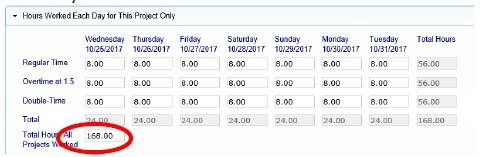
To accommodate monthly consultant reporting in the system, rather than submitting 4 separate weekly reports a maximum total of 168 Regular Hours can be submitted on each payroll record entry form (max of 24 hours per day.) This will allow hours on a single record entry to serve as the employee’s monthly hours on the project. If more than 168 hours were worked that month, please submit additional employee reports as necessary. NOTE: If your Company did not perform any work in a specific calendar month, you do not need to submit a report for that month.
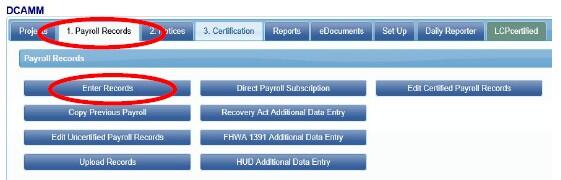
Click on the tab “1. Payroll Records”. Then click on the “Enter Records” button.
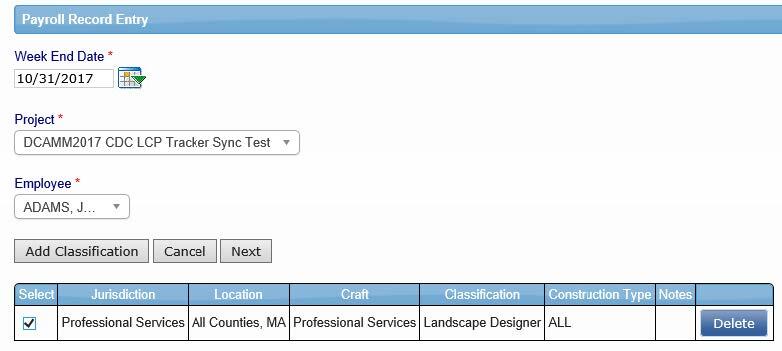
- For the weekend date, enter the last date of the month for the report which you are entering
- Choose your project from the drop-down list
- Choose your employee from the drop-down list
- Click on the “Add Classification” button to choose your employees classification (if you have done this before, the system will remember what you choose previously. If your employee’s classification is not in the list, please contact your CO at DCAMM)
- Check the box under “Select”, then click the “Next” button
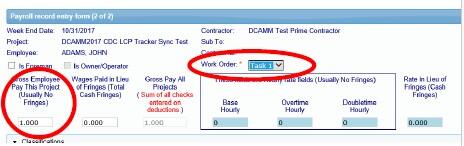
Although wage information is not required, the system does need info in some payroll record fields:
- Select the appropriate “Work Order” from the drop-down list if working on a bundled contract. Also enter “1.0” for “Gross Employee Pay This Project”
- Enter total hours worked for this month’s reporting period. Total those hours below where they are all entered
- Enter “1.00” under “Check Gross Pay”, “Paycheck Amount” and “Check Number”. Then click on the “Save” button.
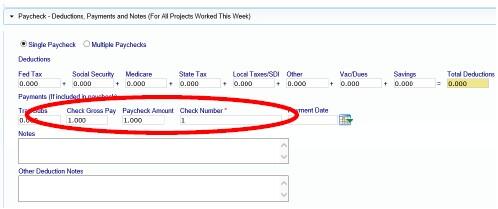
Next, check for any error notices via the tab “2. Notices.” If you have any errors in your employee records, you will find your employee(s) listed here. Click on the “Edit” button next to their record and read the instructions under “Notices” on the bottom of the page. Once, you have resolved these, you will be able to re-save the record.
Finally, click “3. Certification” tab to submit the report to DCAMM.
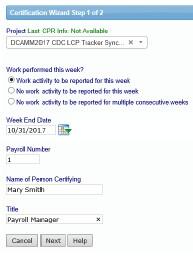
- Select your project from the drop-down list
- Enter in the last date of the month of this report for your week end date
- Enter the number of this report for the payroll number. This number should reflect your report number (i.e., first report should = certified payroll number 1, 2, 3, etc.)
- Enter your name
- Enter your title
- Click on the “Next” button
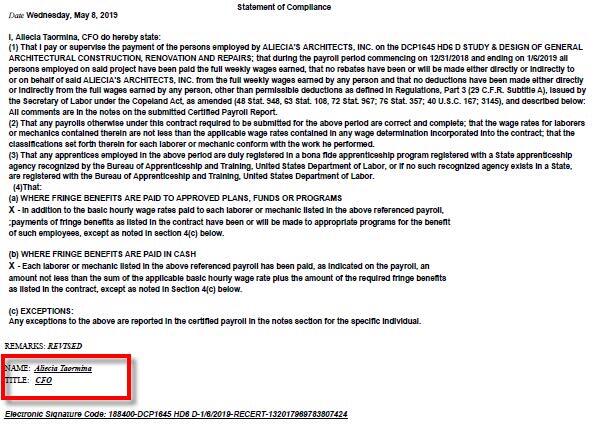
Congratulations! You have now submitted your first Workforce Report electronically to DCAMM.