
DCMS Getting Started
DCAMM’s Contractor Management System (DCMS) is the agency’s platform for MBE/WBE and other Contract Compliance, Certified Payroll and Workforce Reporting. Firms providing construction services (Prime Contractors/Subcontractors), as well as, firms providing design services (Prime Designers) on DCAMM projects are responsible for using the DCMS system to self-report project payments and workforce data, including employee information, hours worked and for construction workers, wages paid.

Introduction
Prime Contractors and Prime Designers (Designer) are required to complete contract set up for each new project before commencing any work. Establishing a new contract in DCMS is a two part process. The Prime Contractor/Designer must first log into the Contract Compliance/Payment Reporting portion of DCMS (Contract Compliance) and then sync to the Certified Payroll/Workforce Reporting portion of DCMS (Payroll/Workforce Reporting). Training and support are offered by the system vendors for both portions of the system and is directly accessible upon login.
Initial set up for a newly awarded DCAMM project consists of two important steps:
- Adding subcontractors/subconsultants to the Contract Compliance portion of the system (hosted by B2GNOW) to track payments and participation.
- Syncing/adding those subcontractors that will be performing work on the project to the Payroll/Workforce Reporting portion of the system (hosted by LCPTracker) to collect certified payrolls and workforce data. *construction projects only
Prime Contractors and Designers will need to repeat these steps as new subcontractors are added to their DCAMM project, for complete and accurate Contract Compliance and Payroll/Workforce Reporting across DCMS.
Please add dcamm@gob2g.com and noreply@lcptracker.com to your address book or safe list to ensure delivery of DCMS emails.
DCAMM Contract Compliance/Payment Reporting System
- Prime Contractors/Designers will receive a system generated email from DCMS with their Prime Login ID (if there is no company profile in the system) and DCAMM project assignment notification. This login ID will be an email address associated with the company profile. *If you have not received your login and/or DCAMM project assignment email(s) from DCMS please check your spam folder.
- Log in to DCMS
- Add ALL subcontractors to DCMS for DCAMM approval (*Designer add only MBE and WBE subconsultants)
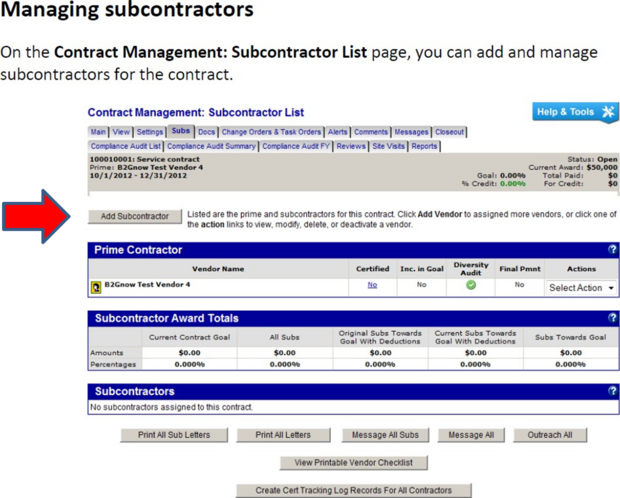
Currently Only payments to MBE and WBE subcontractors will be tracked, and should be marked “Yes- Subcontractor is active” so that they are included in monthly compliance audits.
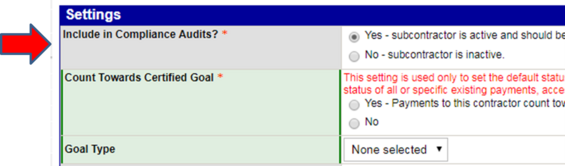
Non-MBE and WBE subcontractors should be marked “No-subcontractor is inactive” so that they will not be included in monthly compliance audits.
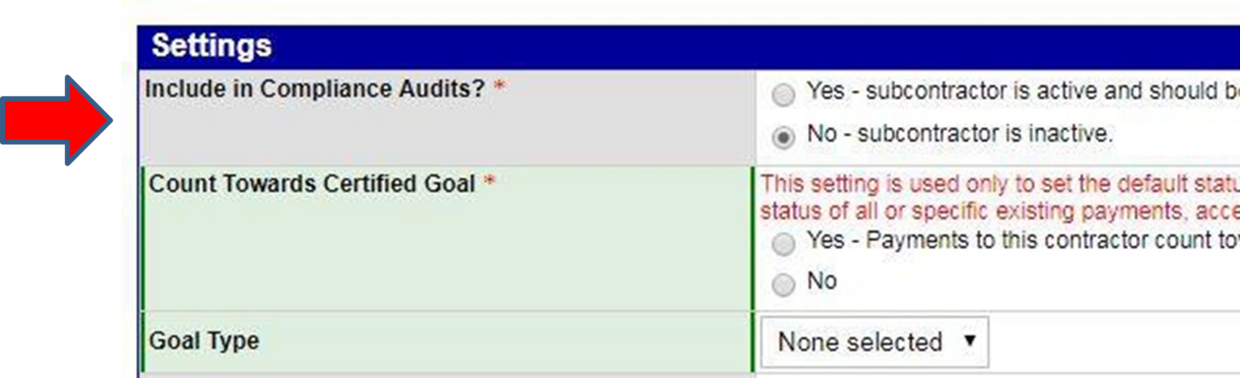
In order to synchronize with the Payroll Reporting/Workforce System for certified payroll submission, the “Synchronize with Prevailing Wage System” must be checked “Yes”. This option can be found under “Settings” in the “Add Subcontractor” section. (*Construction Projects Only)
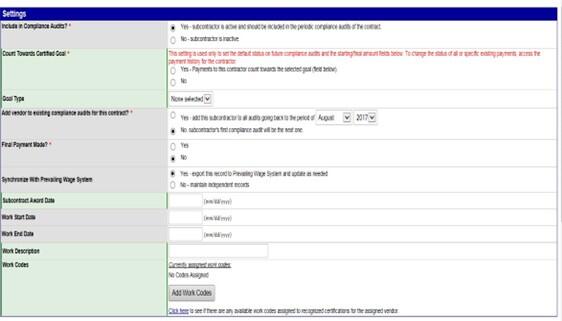
*Subcontractors can also be added directly to Payroll/Workforce Reporting portion of the system without being synced from the Contract Compliance portion, the sync feature is an added convenience so contractors do not have to enter subcontractor information twice, if the sub does not already exist in the Payroll/Workforce Reporting portion.
DCAMM Payroll/Workforce Reporting System
- Log-in to the Payroll/Workforce Reporting portion of the system.
- For convenience and ease of access, contractors can securely link their Payroll/Workforce Reporting account to Contract Compliance. After logging in, the contractor can connect to any other linked account by clicking “Linked Accounts” on the Contractor Compliance Dashboard.
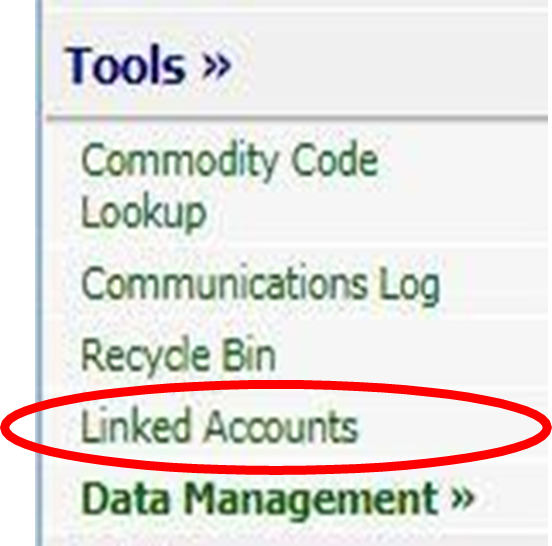
The labor reporting platform can also be accessed directly via LCP Tracker
- The Prime Contractor is to assign ALL subcontractors (performing work on site) to the project in Payroll/Workforce Reporting for Certified Payroll submittal. (*Contractors please ensure a Prime Approver (name and email address) has been designated for your firm and communicated to your DCAMM Project Manager.)
Many of the subcontractors are already set-up in the Payroll/Workforce Reporting System under DCAMM, so creating a new profile for each may not be necessary.
To check this:
- Set-up > Subcontractor Set Up > Subcontractor Assignment
- Select “Add New Assignment” and check to see if the subcontractor that needs to be assigned to the project is on the list
- Designers please refer to the Designer User Guide for workforce reporting instructions. (*Design Projects Only)
Once these steps have been completed by the Prime Contractor or Designer, you will be ready to start reporting MBE/WBE participation, subcontractor payments and certified payroll/workforce participation in DCMS!