
Make a payment
- Log in to eLIPSE and verify your identity.
- On the top banner of any page, use the My Dashboard menu to select either Individual Applications or Business License Applications, depending on what kind of application you want want to make a payment for.
- eLIPSE displays a list of all the Individual or Business License applications you have ever applied for.
- To have your most recent applications appear first, sort the list by clicking the column heading of Applied Date. The applications are in “newest first” order when the arrow in the column heading points down.
- When you locate the application you want to make a payment for, click its Application ID (in the first column.)
- On the application’s page, click Resume Application.
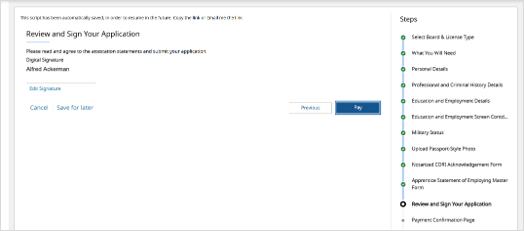
- After you review and sign your application, click the Pay button.
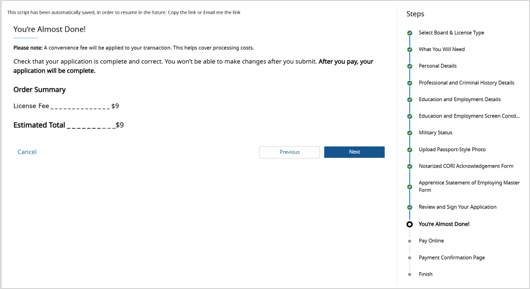
- Read the order summary and click the Next button.
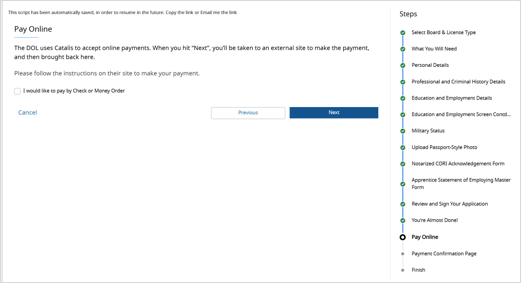
- In the Pay Online screen, if you want to pay online, click the Next button. To pay by money order or check, mark the I would like to pay… checkbox.
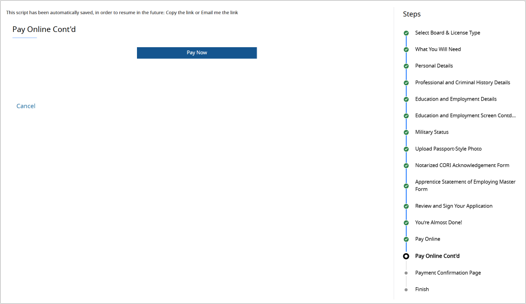
- In the next screen click the Pay Now button.
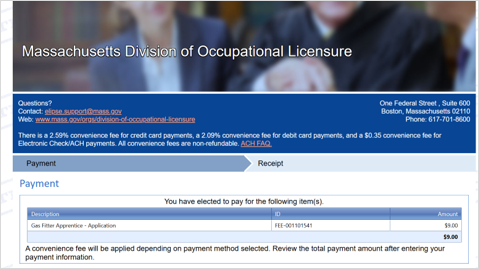
- eLIPSE takes you to the payment website. The top of the screen will display information about the fee and any convenience fees depending on the payment method.
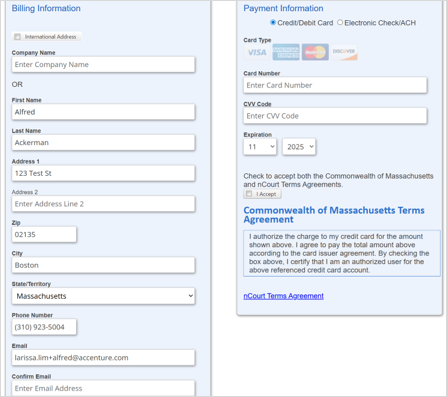
- Verify the pre-populated information and then fill out the Payment Information.
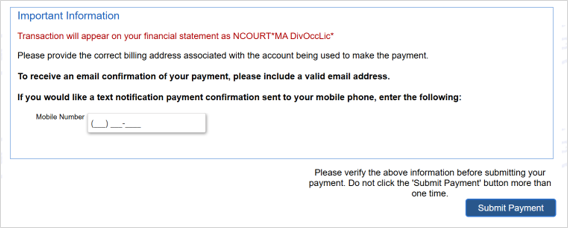
- At the bottom of the page, click the Submit Payment button.
- On the Payment Confirmation page, click the Next button.
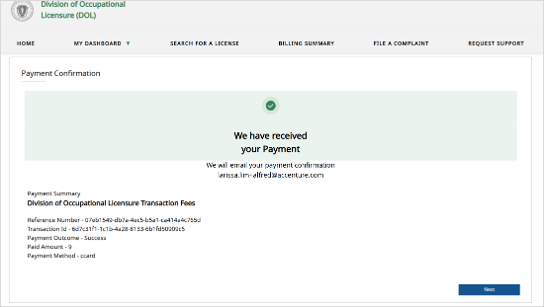
- The application payment is complete. Click the Close button.
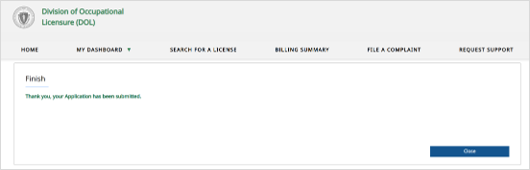
If your license requires a license fee payment
Some licenses require a separate payment, apart from the application fee.If your license requires a license fee, you will receive an email from DOL. The email will tell you that your license has been approved, and it will direct you to log in and pay the fee.
- Log in to eLIPSE and verify your identity.
- On the top banner of any page, use the My Dashboard menu to select Licenses and Permits. Note that it is no longer an “application.”
- You will see a screen like this one:
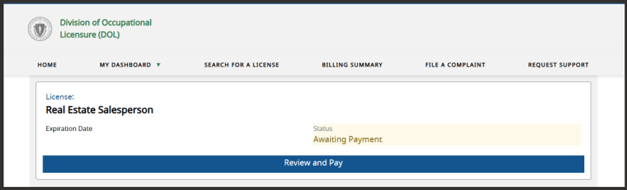
Notice:
- This appears on your Licenses and Permits page, not your Applications page.
- There is no expiration date yet.
- The Status is Awaiting Payment.
Click Review and Pay.
- Follow the same steps in the section above for making your payment.
- eLIPSE will display a message confirming your payment and send you an email confirming your payment.
- When you check your license again, the screen will look like this:
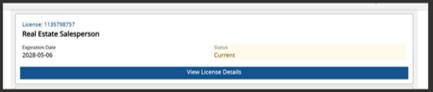
Notice that the license now has an expiration date and its Status is Current.
Access billing summary
The Billing Summary shows a list of pending payments as well as a list of billing history.
- Log in to eLIPSE and verify your identity.
- In the top banner of any page, click the Billing Summary tab.

- eLIPSE displays a list of pending payments. Locate the fee you want to pay, and next to it click the Make a payment button.
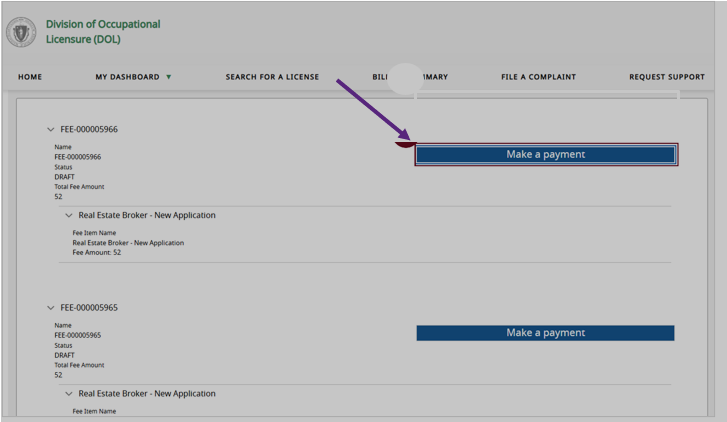
- To see a list of completed payments, at the bottom of the page, click View Billing History.

Contact
Online
Phone
MassRelay (TTY & ASCII)
Call Division of Occupational Licensure, MassRelay (TTY & ASCII) at 711