
If you want to view and manage affiliations
- You must be listed on a business account as someone who can manage affiliations (owner, broker, office manager, etc.)
- You must log in with your own account.
View licenses affiliated with your business
- Log in to eLIPSE using your MyMassGov account and verify your identity.
- On any eLIPSE page, at the left of the top banner, hover on or click My Dashboard.
- From the menu, select Business Affiliations.
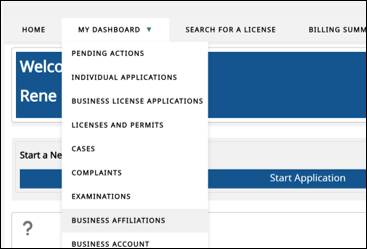
- eLIPSE displays the View Accounts screen.
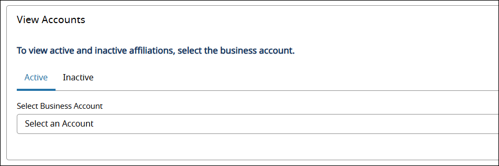
Use the Select Business Account drop-down to select the business whose affiliated license you want to view. (Some accounts have more than one business in the list.)
- Use the Active and Inactive tabs above the drop-down to view active or inactive affiliations.
- eLIPSE displays the licenses affiliated with the account you logged in with.
Affiliate a licensed person with your business
- Note the license number(s) that you want to affiliate with your business.
- Follow the steps above to display the list of people currently affiliated with a business.
- Above the list, to the right side, click the Add Affiliation button.

- eLIPSE displays the Add License Affiliations window.
- Enter the License Number of the person you want to affiliate.
As you enter the license number, eLIPSE will display a list of licenses that match the characters you enter. You may need to enter the complete license number to see the one you want; that’s OK.
When you see the license you want to affiliate, click it.
eLIPSE will fill in the window with values from the license record. - At the bottom of the form, use the drop-down of the Type field to select RealEstate Salesperson.
- Below that field and to the right, click the Submit button.
- eLIPSE confirms that you added the affiliation successfully. Click the Close button.
eLIPSE brings you back to the View Account window.
To view the affiliation you added, hover on or click My Dashboard and select Business Affiliations. eLIPSE displays it as an “Active” affiliation.
If you need to add multiple affiliations in one session
To the right of the Add Affiliations label, click the Add control.

eLIPSE will open 4 forms for you to add 4 affiliations.
Remove an affiliation
To remove a business affiliation, you make it “Inactive”. Here’s how.
- Follow the instructions above to view your business affiliations.
- eLIPSE displays a box with all of your business affiliations. Locate the affiliation you want to remove.
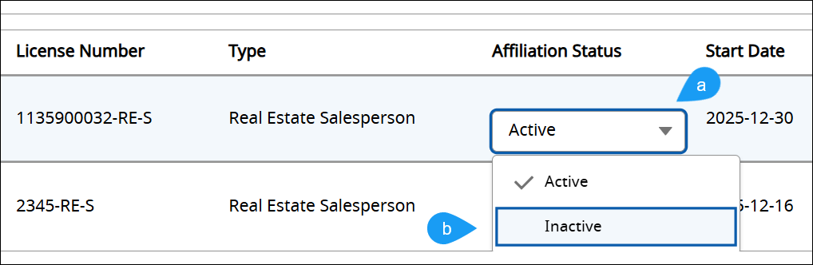
- Under Affiliation Status, click the drop-down list.
- Click Inactive.
- Above the list, click the Update button.
eLIPSE removes that person from the list of Active affiliations. That person will appear in your list of Inactive affiliations, and the End Date will be the date you made them Inactive.
NOTE: Changing a Person of Record
If you want to add or remove a Person of Record (e.g., Real Estate Broker of Record or Master Plumber of Record), you must submit a request to your Board. You cannot do this yourself using Business Affiliations.
Next steps
The Board Staff will review the submitted application and reach out if further information is needed.