

Getting started
Your licenses are generally eligible for renewal 90 days before their expiration dates.
When a license becomes eligible for renewal
- You will receive an email from DOL about that, with guidance on how to renew.
- You must have a MyMassGov account to log in and renew. Refer to the Getting Started guide for how to create that. Then come back to this guide to learn about renewing your license.
- If you have linked your license(s) to your account, you are ready to renew using eLIPSE.
When you first create your MyMassGov account, eLIPSE will display this page:
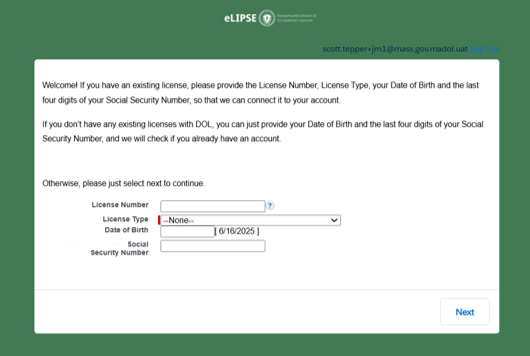
If you currently have a license, enter the information requested, and click the Next button.
Important
If you already have a license, do not skip this screen. Your licenses will not be connected to your account, and they will not appear on your eLIPSE page.
eLIPSE will display a page indicating that it located your license(s).
This example is a Real Estate Salesperson, but the page will look the same for all licenses.
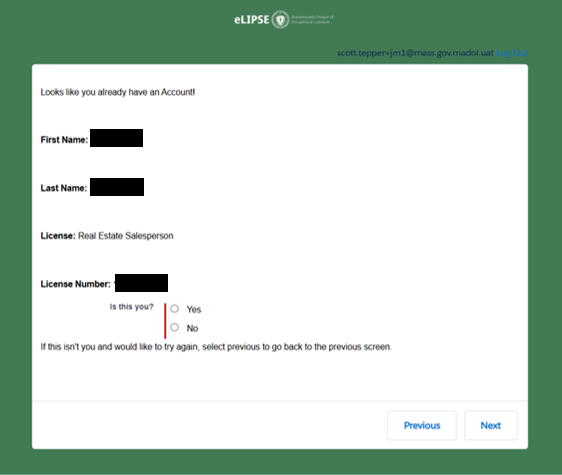
If eLIPSE located your license(s) correctly, click the Yes radio button and then the Next button.
eLIPSE will link that license to your eLIPSE account. If you have more than one license, eLIPSE will link all licenses you hold to your eLIPSE account.
Before starting your renewal
Be sure to have:
- Documentation of your completed approved continuing education courses.
- A notarized CORI form. Click here to download a DOL CORI form.
When you are ready to renew
- Log in to eLIPSE using your MyMassGov account and verify your identity.
- If any of your licenses are eligible for renewal, you will see them on your Home page.
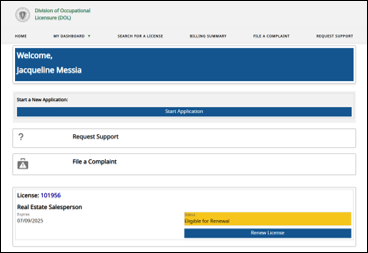
To start the renewal process, click the Renew License button.
- eLIPSE will display this message.

The message may be different depending on the license you are renewing.
Read if, and then at the bottom click the Start Application button.
- eLIPSE displays the Personal Details page.
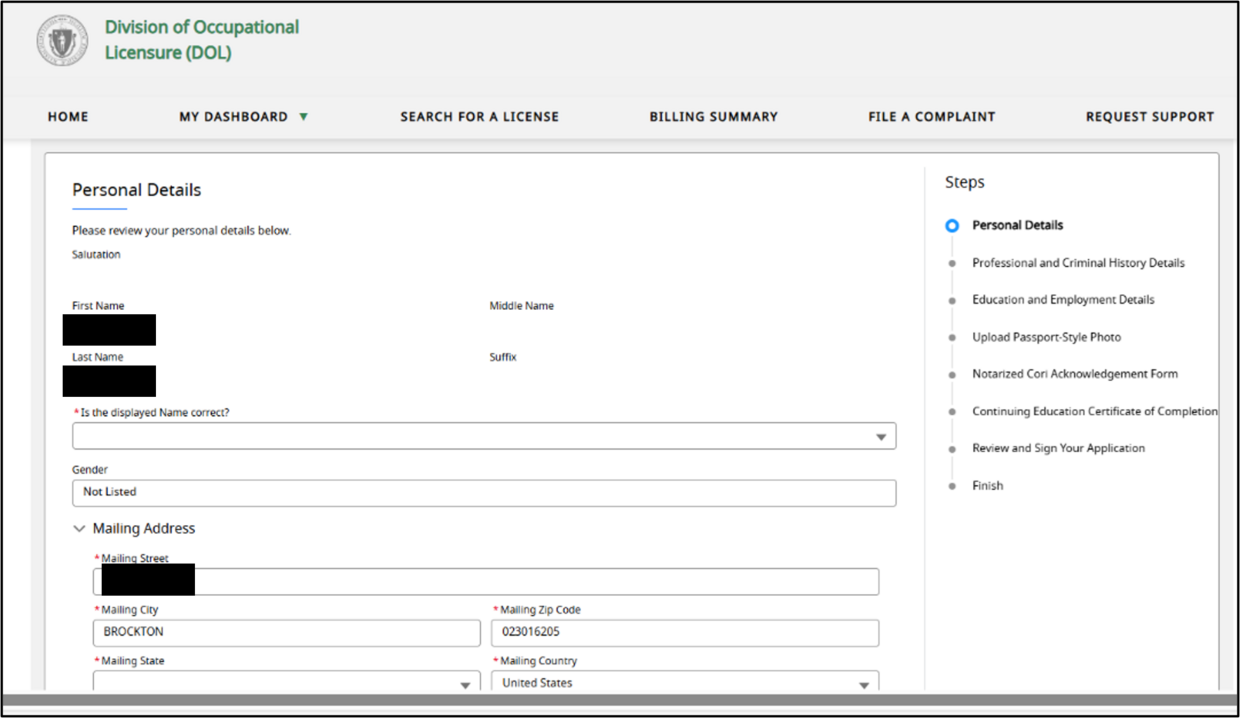
On the right side, eLIPSE shows your progress in the renewal Steps.
On the left side, review the details.
Be sure to use the drop-downs to confirm your Display name, email, military status.
On the bottom left, you will see a Save for later button. If you need to stop working on your renewal, you can click that button and resume your renewal another time.
When you are ready, click the Next button.
- eLIPSE displays the Professional and Criminal History Details page. Use the drop-downs to answer the questions, and then click the Next button.

- eLIPSE displays the Education and Employment Details page.
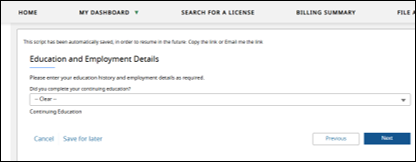
If you answer Yes, the form will open fields for you to enter details about the continuing education you completed.
After you have done that, click the Next button.
- eLIPSE displays the Upload Passport-Style Photo page. Click the Upload Files button. This is very much like attaching a photo to an mail or text message. Your photo can be in any of the popular image formats, like jpg or png. It cannot be a PDF file.
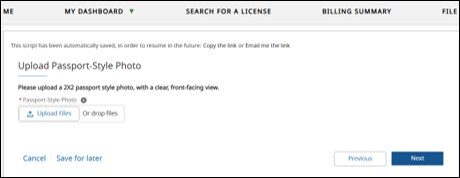
After you have uploaded your photo, at the bottom right of the screen, click the Next button.
- eLIPSE displays the Notarized CORI Acknowledgement Form page. Click the Upload Files button. This is very much like attaching a photo to an email or text message. Your form document can be a scan in any of the popular image formats, like jpg or png, or it can be a PDF file.

After you have uploaded your scan, at the bottom right of the screen, click the Next button.
- eLIPSE displays the Continuing Education Certificate of Completion page.
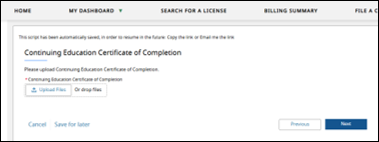
After you have uploaded your scan, at the bottom right of the screen, click the Next button.
- eLIPSE may display other pages depending on the license you are renewing.
After you have completed those other forms, eLIPSE displays the Review and Sign page:
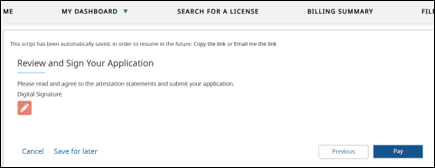
On this form, click the pencil icon.
eLIPSE will display a form where you:
- Enter the name you want to sign with.
- Choose whether you want to draw your signature or use a digital signature.
- Read the attestation.
- Click that you agree.
- Click the Submit button.
When you return to this screen, click the Pay button.
- eLIPSE displays the You’re Almost Done! page. Review the fees associated with your license or permit, and then click the Next button.
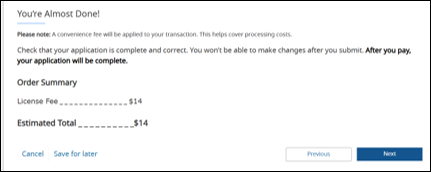
- eLIPSE displays the Pay Online page.
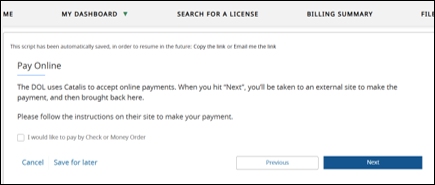
If you choose Check or Money order, eLIPSE will advise you that will delay processing of your application. Online payments are processed by another service, and you will be taken to its page
After you have chosen how to pay, at the bottom right, click the Next button.
After you have paid your fees online, eLIPSE will tell you that your renewal has been submitted.
Generally, your renewal will process automatically, and your license will appear with the new expiration date. If your renewal needs a Board review for some reason, you will receive an email about that.
Questions?
If you have more questions about renewing a license or permit, please contact the appropriate board.
Next steps
The Board Staff will review the submitted application and reach out if further information is needed.