
Submitting a complaint
- Before you file your complaint:
- Gather any documents that you have that support your complaint, like contracts or other agreements, receipts, or photos. Make sure you have digital copies of these documents and you know where to find them on your computer or mobile device. You are not required to submit any documents, but they can be useful in supporting your complaint.
- If anyone witnessed the incident, gather their names and contact information.
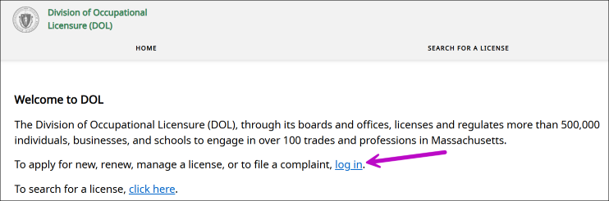
- Go to the DOL web site.
- On the DOL web site, log in using your MyMassGov account information and verify your identity.
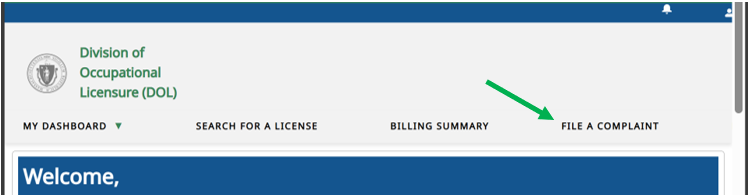
- On your eLIPSE Home page, at the top of the screen, click the File A Complaint tab.
- eLIPSE will display the File a Complaint page.
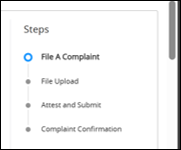
On the right, you will see the steps that the site will guide you through to file your complaint.
On the left, the first section, Your Personal Details, will already have your first name, last name, email address, and other personal details you used when you created your MyMassGov account. The only required details are an email address and telephone number so we can contact you regarding your complaint. All contact information is kept confidential.
- The next section of the form, Complaint Details, asks you when the incident occurred (click the field to pick a date from a calendar), and where it happened, and asks you to describe what happened.
- The Witnesses section asks for details about any witnesses to the incident. To add a witness, click the +.
- When you have completed this page, at the bottom, click the Next button.
- eLIPSE displays a File Upload screen. Use that screen to attach digital copies of any documents you have for supporting your complaint, like contracts or other agreements, receipts, or photos.
- When you have finished attaching documents, at the bottom of the screen, click the Next button.
- Finally, the Attest and Submit section asks you to certify that what you are presenting is true.
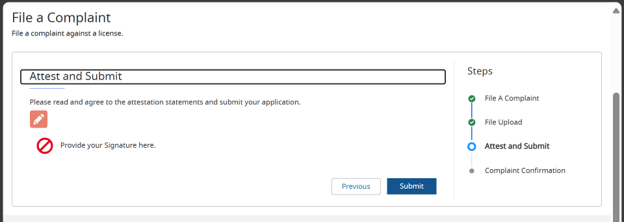
On this form, click the pencil icon.
- eLIPSE will display a form where you:
- Enter the name or initials you want to sign with.
- Choose whether you want to draw your signature or choose a style for a digital signature.
- Read the attestation.
- Click that you agree.
- Click the Submit button.
eLIPSE will display a confirmation screen.
You will also receive an email from DOL with your Complaint Number. If you do not see it in your email inbox, check your Junk or Spam folder.
Contact
Online
Phone
MassRelay (TTY & ASCII)
Call Division of Occupational Licensure, MassRelay (TTY & ASCII) at 711