
Digital accessibility in brief
Digital accessibility is about ensuring that the digital world offers equal access for everyone. For many years there have been regulations around access for people with disabilities in physical spaces. With more of our day-to-day activities occurring online, regulations are needed for the digital world to offer equal access.
Disabilities can affect vision, hearing, cognition and motor skills, or be an intersection of multiple disabilities. Different assistive technology is available to help support people with disabilities. Assistive technology can be something as common as a computer keyboard, or it can be more specific like screen reader software or switch devices. The Web Content Accessibility Guidelines (WCAG) specify standards and techniques to ensure that assistive technology can be used when navigating the web. Not everyone with a disability uses assistive technology, so it is imperative that content is as clear and usable as possible in the first place.
26% of individuals over 18 in Massachusetts have some kind of disability, and all of us will experience a disability in our lifetime, whether it is situational, temporary, or permanent. That means that many of the constituents accessing digital content created by the Commonwealth have a disability, and may be using assistive technology to do so. To ensure that all of our constituents can access what they need, we need to make sure our content is accessible.
Regulations and Title II
In April 2024, the Department of Justice published a final ruling to update regulations for Title II of the Americans with Disabilities Act. Title II states:
Public entities must ensure that web content and mobile apps that entity makes available directly, through contract or licensing or other arrangements are accessible based on WCAG 2.1 A and AA standards.
Public entities with a total population of 50,000 or more must adhere to this by April 26, 2027. Public entities with a population of less than 50,000 have until April of 2028.
Strategy
Inventory
It is recommended to create an inventory of your digital content, and put it into a maturity model, so you can show what content has been made accessible, what you are working on, and what is in the backlog. This will help you to be transparent about where you are in the journey of making your digital content accessible, and for you to be able to track your progress. This inventory will include content such as the following, but this is not an exhaustive list:
- Web pages and intranet pages
- Content Management Systems and Learning Management Systems
- External and internal documents
- Templates
- Learning materials
- Social media accounts
- Multimedia
- Enterprise software
- Department specific tools
Download this Digital Asset Inventory Template to help you get started.
Exceptions
You can review the ADA Summary of Exceptions, make sure to confer with your internal stakeholders and legal counsel.
Expectations for content
All digital content needs to be made accessible. Start with your most important and popular resources and priorities those. All public entities have a mountain of existing content that will have to be worked through, but it is most important that your constituents can access, participate in, and apply for services provided by your organization.
Prioritize making new content accessible, and prevent the generation of new inaccessible content. Baking accessibility into the beginning of design and development reduces violations and saves considerable time. When learning to apply accessible practices to making content, it may take more time to develop as you learn, but it is less than the extra time and work to fix or redo something that was made without accessibility in mind.
Office Documents
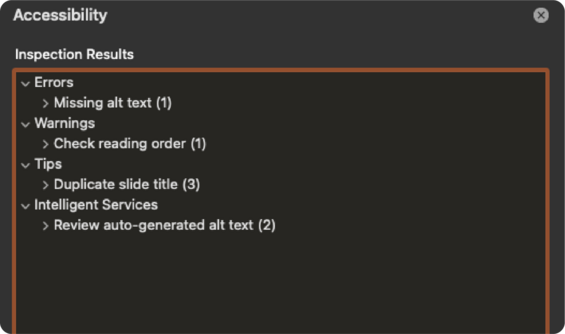
Office applications contain an accessibility checker that looks for common accessibility errors, such as missing alt-text on images, redundant items, and reading order of PowerPoint slides. This should be run on all documents, and issues should be resolved.
PDFs
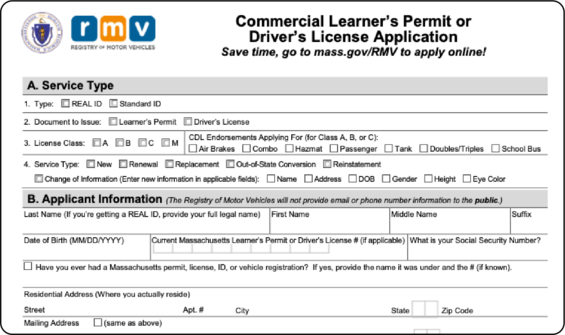
PDFs must be created from an accessible source document to reduce accessibility errors in the PDF. All PDFs must be checked for accessibility after export. If the document is complex and contains forms or infographics, it will need remediation in Adobe Acrobat Pro. Alternatively, forms and infographics can be created on the web in a more accessible fashion and can still be made printable.
Communications: Email, newsletters, and social media posts

Typical email templates use tables for formatting, which can cause problems for keyboard navigation and screen readers. When possible, use HTML to develop accessible email templates or use simple templates that allow resizing and reflow for different email applications and window widths. Social media posts should use the extent of the tools available from that platform to add accessible content like alt text and captions.
Content Management Systems (CMS) and Learning Management Systems (LMS)
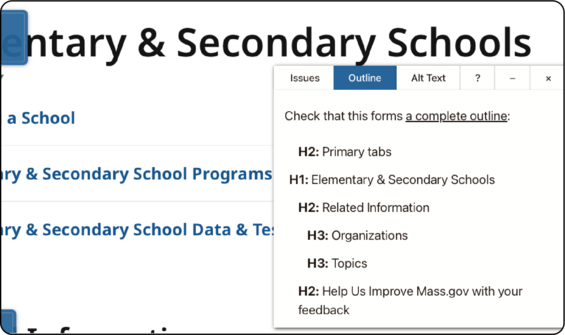
Websites that are made with a CMS or LMS often have built-in accessibility checkers, or have plugins that can be used to check accessibility. These will all vary depending on your system. These automatic checkers do not check for all violations, and can only catch a portion of the errors on your pages, but are a great start at identifying some of the largest barriers for assistive technology. Following are some examples of options for different Content Management and Learning Management Systems. We have not worked with all of these tools and are not endorsing any specific plugins. We recommend searching the web for your management system and "accessibility checker," to see what options are available to you. Some may be built in to the system, or free or paid plugins you can add on to your system.
Video
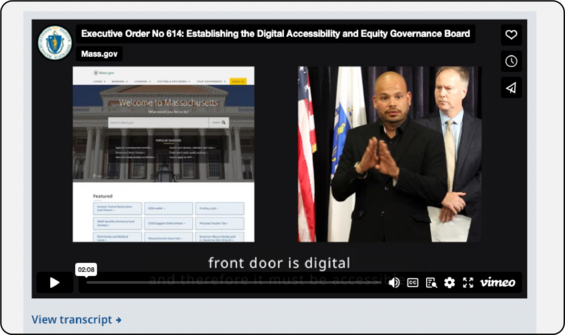
Videos have specific needs such as closed captions and transcripts, and in most cases will also need Audio Descriptions (AD). American Sign Language (ASL) interpretation is recommended for critical materials. For scripted videos, planning ahead can minimize the need for post-production AD. Including ASL interpreters in videos of live events can minimize the need for hiring a service to provide video assets for you to edit in after the fact.
Web Design & Development
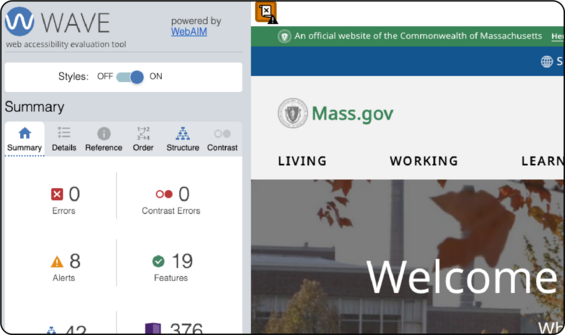
Designers of custom web pages and interactions should develop knowledge of accessible design, and have designs reviewed regularly by peers. Developers should use automated browser plugins to test accessibility, such as WAVE (a tool for scanning an entire web page) or ANDI (a tool for targeting specific elements and inspecting them for accessibility). Automated testing cannot find all violations, so it will be imperative that developers perform manual tests, and learn to develop with accessible patterns.
Procurement

Digital services and applications provided by vendors are required to be WCAG 2.1 AA compliant. Accessibility language should be included in your contractual agreements. Vendors will be expected to provide an Accessibility Conformance Report (ACR). If there are any areas on the report that state that accessibility is unsupported or partially supported, that vendor should provide a roadmap for resolution.
What can I do as a leader?
As a team leader, here are some steps you can take to get your team and your team's content ready for your compliance date.
- Include accessibility in planning, project reviews and in the definition of done
- Add accessibility milestones to project plans
- Monitor and report regularly on accessibility progress
- Identify accessibility roles in governance structures
- Make time for staff or faculty awareness and training
- Include resources for audits and remediation in budgeting
- Celebrate and spotlight accessibility successes
- Require accessibility documentation for purchases and procurement
Make accessibility a core requirement, not a retrofit
Additional Resources
-
Open XLSX file, 246.17 KB, Digital Asset Inventory Template (English, XLSX 246.17 KB)
What resources are available for my team?
Self-paced materials
We have many helpful pages like this one, that each focus on different accessibility topics based on concept, or the work you do.
Explore our self-paced materials
Instructor-led trainings
If your team requires a specific training that is not available in our regular webinars, reach out to us and we can setup a custom solution for your team.
View the live training calendar
Document accessibility
Our document accessibility checklists and decision tree help you determine if it will save you time and effort to convert your document into a webpage, and what steps to take to ensure many different document formats are accessible.
Developer testing tools
For developers, we always recommend running automated testing before manual testing. This will catch around 30% of the accessibility errors on a page. There are still some things that cannot be checked automatically, but the following tools are a great start.
We also have our web and app testing checklists available.
WAVE
To automatically scan an entire page, we recommend the WAVE Evaluation Tool, available for free for Chrome, Firefox and Edge. This is a plugin that will report critical issues and secondary alerts that will need a manual check. To learn more about how to use WAVE, check out WebAIM's Web Accessibility Evaluation Guide.
ANDI
If you need a check that is more granular, and can target individual elements or components, we recommend the ANDI tool. This is a bookmarklet that can be added to any major browser.