Are you trying to look at past applications? We can help with that!
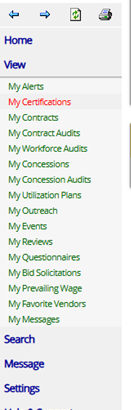
On your Dashboard under View
Select My Certifications
This will bring you to your Vendor Profile: Certifications where you will be able to access past or current applications.
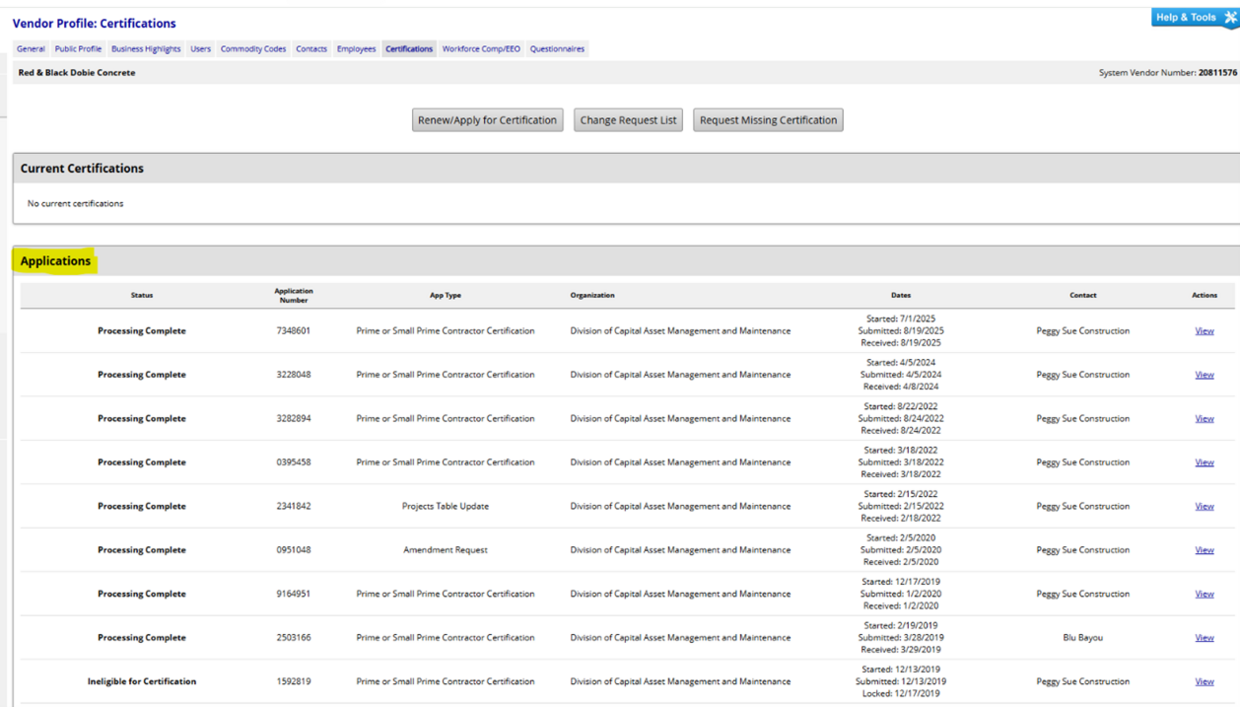
Your most recently completed application will be at the top of the list.
If you are working on an application that has not been submitted, it will be on the bottom of the list.
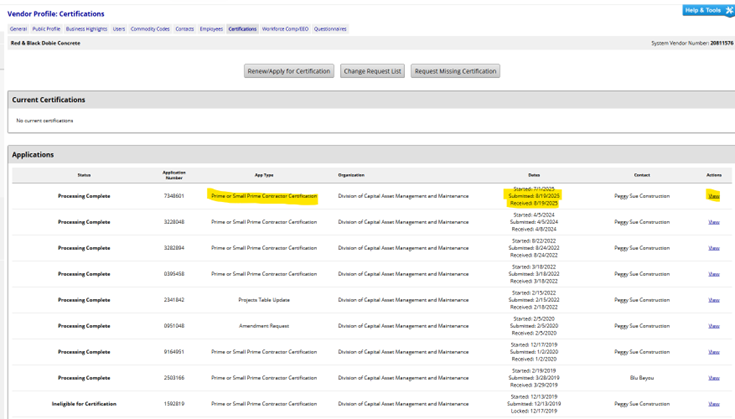
You will see the App Type, Dates and Actions
Under Actions, you will select View
By pressing view, you will be able to see all sections of your application. You will not be able to change anything. If you would like to view or print the entire application, in the middle of the page above Sections and Documentation you will see the View and Print app for your Records button.
This will open all the sections of your application for viewing and/or printing.
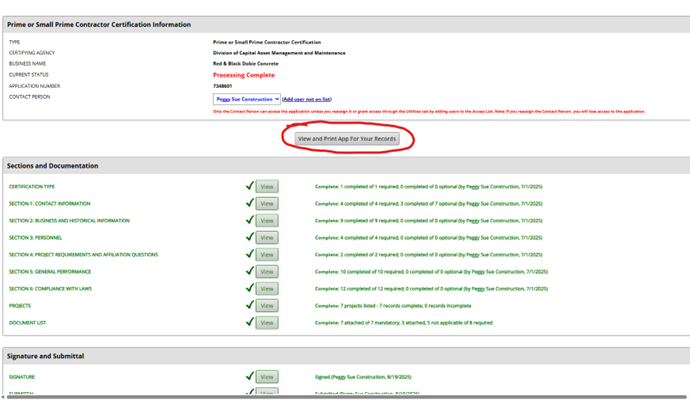
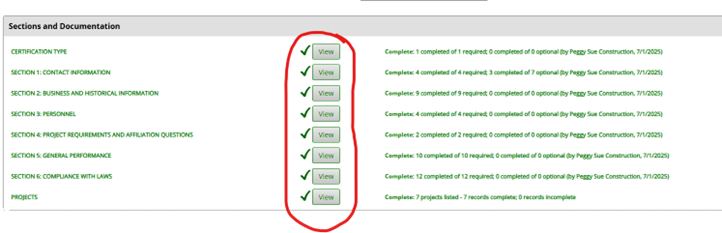
If you don’t want to print the complete application, you can print just the section you want by selecting the View button for that section of the application.
You can select Print to Printer or Print to PDF File
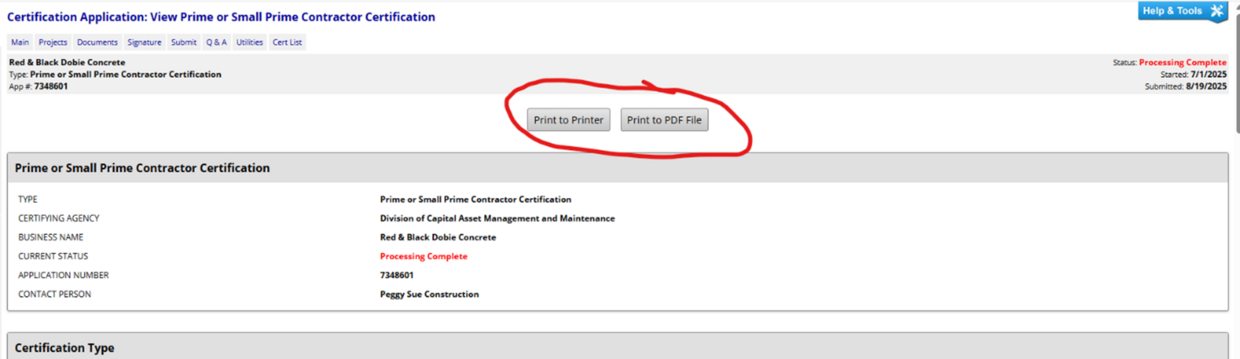
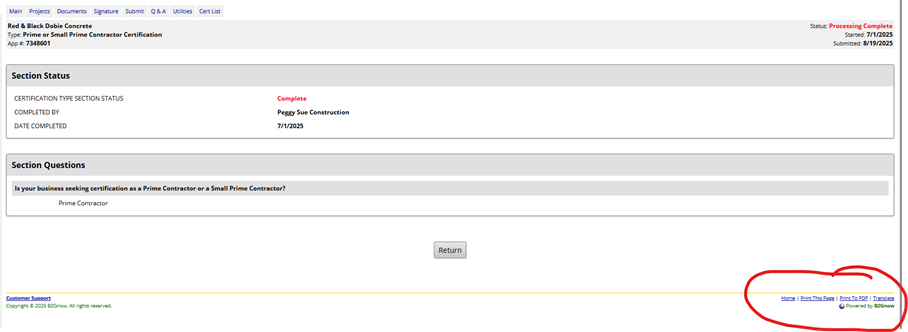
Second option for Printing
You can Print This Page or Print to PDF that section by using the print options at the bottom of the screen.