
Starting Your Projects Table
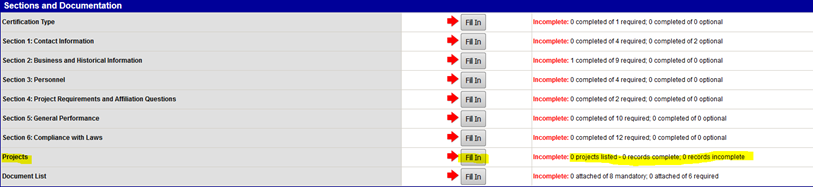
It’s the Project Table section where you will list your completed and in progress jobs.
This will walk you through adding your jobs to the Projects Table.
As you can see from this view you can see how many projects you have listed before going into the table.

This is what you will see when you access the project section of the application.
- The table will keep track of the number of projects you enter. If you have to leave and are unable to finish entering the information for a project, the table will flag that record as incomplete
- You can list a total of 40 projects and this can be any combination of completed and in progress projects
- Here is where you enter the project details. Completed projects will be 100%, your in-progress project “% complete” will vary depending on the state it’s at.
- You will list the categories of work you performed on this project here along with the dollar amount per category.
- In this section you will list the owner of the property/project and their contact person, and the evaluator of the project (the one who can best evaluation your performance on the job) and their contact person.
- This section is only used for General Building Construction (GBC). Here you will list your highest 3 sub-trades on the project (each one must total a minimum of 5% of the Total Contract Amount). You may list your self-performed subtrades from section 4 again, if applicable.
- If you have any notes on a project you would like to share with your compliance officer, you can write it in this notes section
- At the bottom of the projects listing you will find your Save button (Remember to save often as the table doesn’t auto save) The Save button will also add lines for additional projects, if needed.
- The Export List button lets you transfer the projects listed to an Excel spreadsheet
- Delete Selected Projects button removes projects by checking the checkbox at the beginning of the project

- After saving your progress, if you missed information, the background of the project table will turn slightly red and the areas you missed will be highlighted in red.
- In this example we selected General Building Construction, didn’t fill in the sub-trade work categories, and saved our work. The missing sections are highlighted.

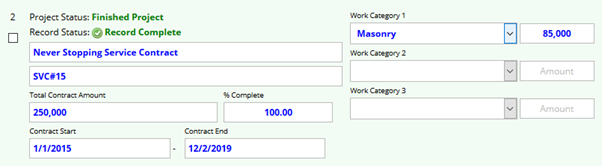
Fill in the missing information, save it again and the record is now complete

- b. In the example below we did not enter the amount of our category of work, saved it and the record is flagged as incomplete
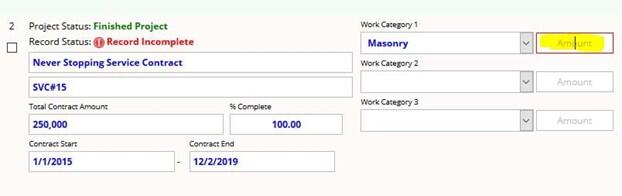
Fill in the missing information, save it again and the record is now complete
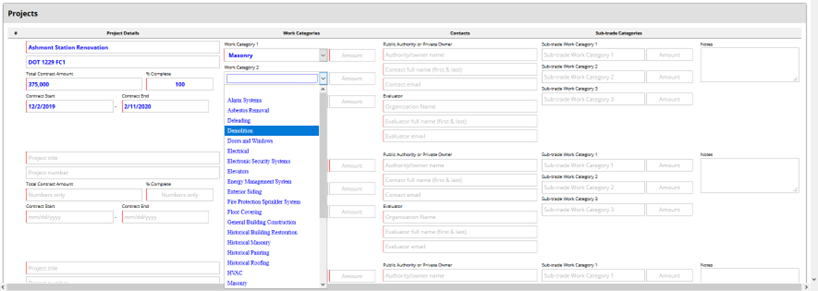
The Work Category section of the record is a drop-down menu.
The Sub-trade section can be entered by typing directly in the box.
Let’s Look at a Very Nice & Handy Feature of Our Projects Table.
Are you ready?
Being able to add both in-progress and completed projects on the same table you may want to see just the completed projects to make sure you have them all listed.
Now, there is a way!
Once you start entering in your projects this wonderful little box will appear and you will be able to uncheck the projects you don’t want to see (yes, they are still there!)
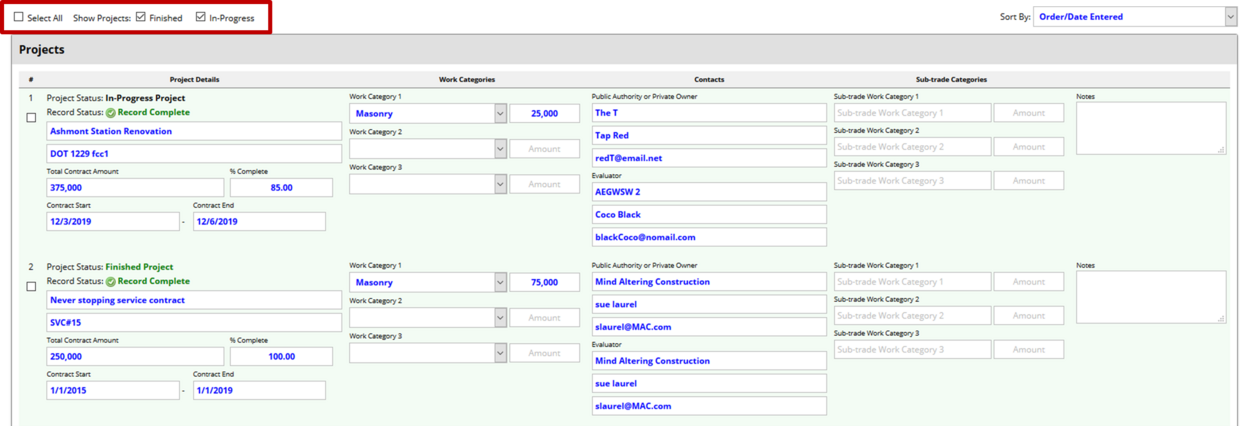
If you want to see only the In-Progress projects, you have entered so far, make sure the Show Projects: In-Progress box is checked, and the Finished box is unchecked

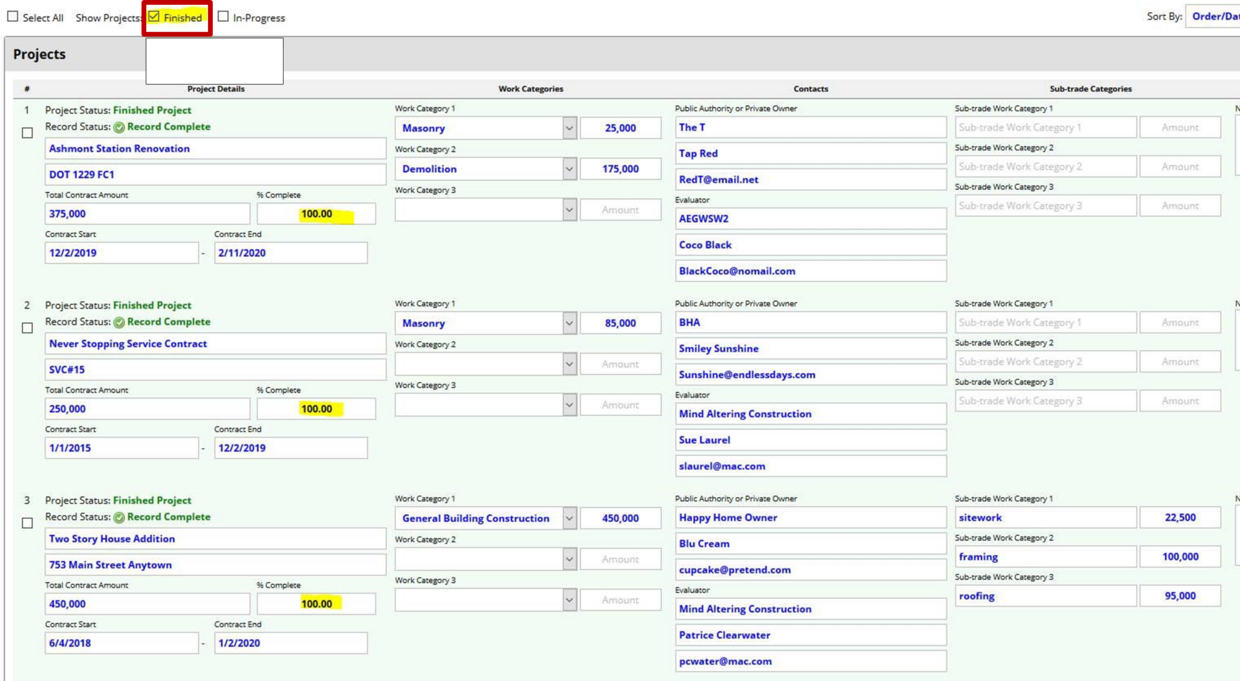
If you want to see only the finished projects, you have entered so far, make sure the Show Projects: Finished box is checked and In-Progress is unchecked
One last thing that will make you smile -
You can export the projects list to an Excel document or print it to a PDF (perfect for the update statement!)
Are YOU as excited as WE are?