
Change your address or telephone number (and add additional ones)
- Log in to eLIPSE.
- In the upper-right corner of any eLIPSE page,
click the “person” icon, and on the menu that appears, click My Account.

- eLIPSE displays a page with your account information.
To change your address or telephone number,
click the pencil icon to the right of what you want to change.
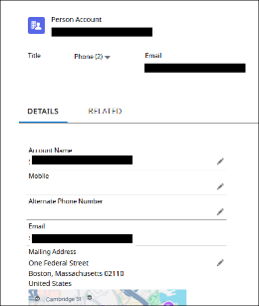
- eLIPSE will open a form where you can make the changes.
- When you are done making changes, at the bottom of the form, click the Save button.
Change your name
You cannot change your name directly via eLIPSE. You must submit a support request. Here’s how:
- On any eLIPSE page, on the right end of the top banner, click Request Support (see the illustration at the top of this guide.)
- Fill in the form to request a name change.
Please allow time for the name change to take effect. Check after a day or two, and if your name has not been changed, please contact eLIPSE Support again using the form and let them know.
Change your email address
You cannot change your email address in eLIPSE, since you use MyMassGov to log in to eLIPSE.
Refer to these instructions on the Mass.gov web site: Change the email address in your MyMassGov account
Contact
Online
Phone
MassRelay (TTY & ASCII)
Call Division of Occupational Licensure, MassRelay (TTY & ASCII) at 711