Greetings from DCAMM Contractor Certification!
This tip sheet will show you how you can print a copy your application.
How to Print Your Application?
- Log in to your DCMS Account
- At your Dashboard click on Certification Applications to view your apps
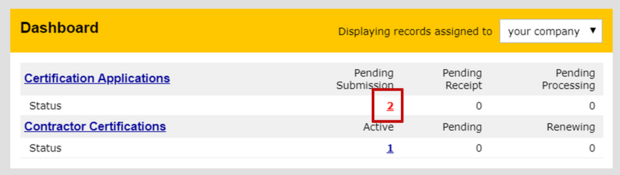
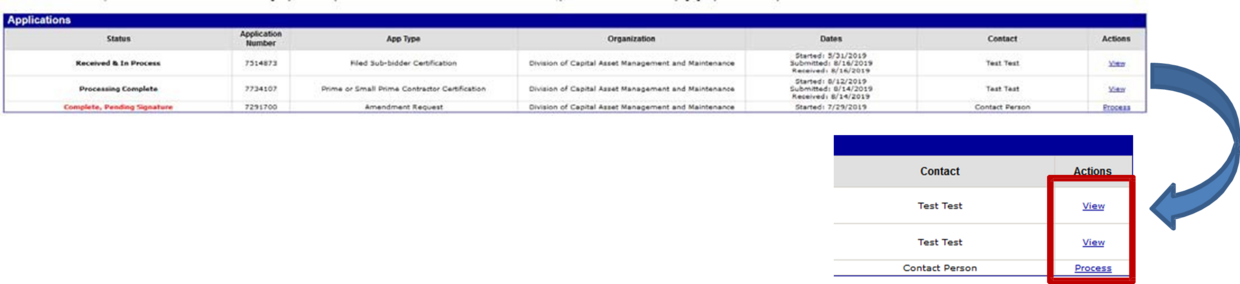
- In the Applications box you will see applications that are submitted to DCAMM but not yet approved (Received; in Process), approved applications (Processing Complete) and applications not you’ve started but not yet submitted (Complete, Pending signature).

- Under Actions click View on the application you wish to print
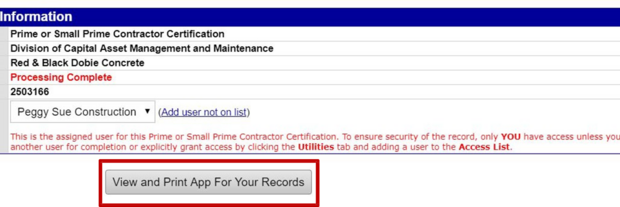
- This will open the Main Summary of your application
- Click View and Print App for Your Records
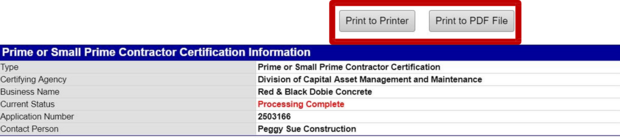
- On the screen you will have the application you submitted to DCAMM. You will have the option to Print to Printer or Print to PDF File
- Select one
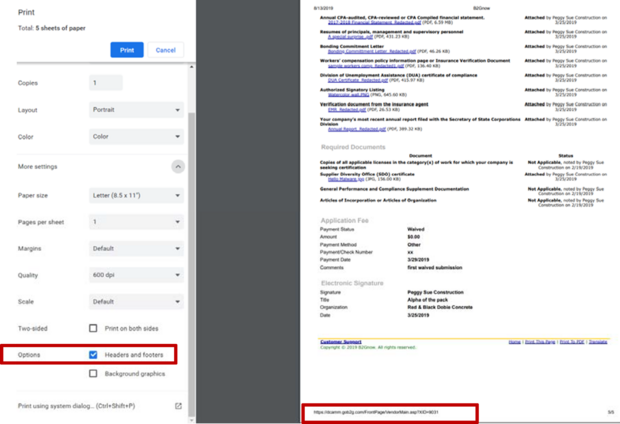
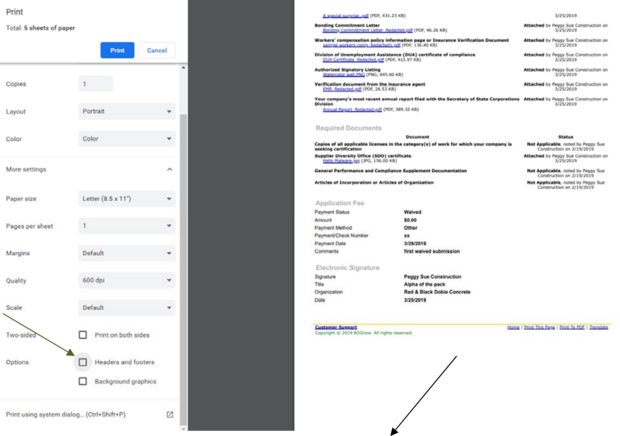
- You will see you have a header and footer on showing on your document
- To remove them uncheck the Headers and footers under the Options section