
A quick overview
To use DOL’s eLIPSE to manage your licenses and permits, you need 4 things
- A computer or mobile device with internet access.
- An email address.
- A telephone where you can receive text or voice messages. It can be the same mobile device you use to access the internet.
- If you already have a license, you need to know how your first and last name appear in eLIPSE. How can you know this before you have set things up? You’ll see soon. You only need to do this once. If you do not have any licenses yet, this does not apply to you.
Then, you
- Create an account with MyMassGov. You only need to do this once.
- Set up a way to confirm who you are every time you log in (“multifactor authentication”, or MFA.) You only need to do this once.
- Link your license(s). You only need to do this once.
Here’s more about each of those. It looks like a lot, but it’s because there are lots of screen shots.
Computer or mobile device with internet access
You can use eLIPSE with any kind of personal computer or any kind of mobile device, like a smart phone or a tablet. Just be sure that your computer or device can access the internet.
To access the internet, you can use either Google Chrome or Microsoft Edge.
Email address
You need an email address because that’s how we will communicate with you about your license or permit. You should have your own email address. Don’t use the email address of a friend or relative, because you will want to know as soon as you receive email from DOL. Also, do not use a work email address, because that might change over time.
If you do not have an email address, you can get one for free from several sites, for example, Google, Microsoft Outlook, or Yahoo. Your cable company or internet service provider may also offer a free email address.
Find out how your first and last name appear in eLIPSE
If you do not have any license yet, this does not apply to you.
If you do have a license, you only need to do this once. It’s very important, so please do it.
Why you need to do this
If you already have a license, your name and license information are already in eLIPSE. However, later you will have eLIPSE link your license to your MyMassGov account (which you have not set up yet.)
For eLIPSE to link your license, the first and last name you use to create your MyMassGov account must match the first and last name that are already associated with your license in eLIPSE.
So, before you create your MyMassGov account, check your license and note exactly how your name is stored in eLIPSE.
How to do it
Go to the eLIPSE start page. You will not be logging in.
On that page, click the link that lets you search for a license:

eLIPSE displays the Find a License screen:
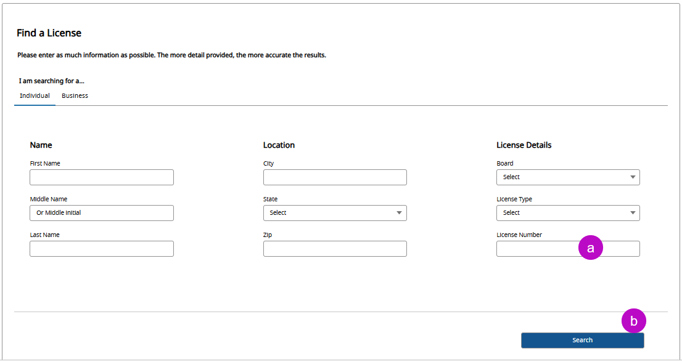
- Enter your complete License Number, meaning with your board code and license type, for example, 1234567-BC-FG. If you have more than one license, use any of your license numbers. Do not fill in any of the other fields.
- Click the Search button.
eLIPSE will locate the license and display it on a License Details screen. To the right of the license details, click the View Details button.
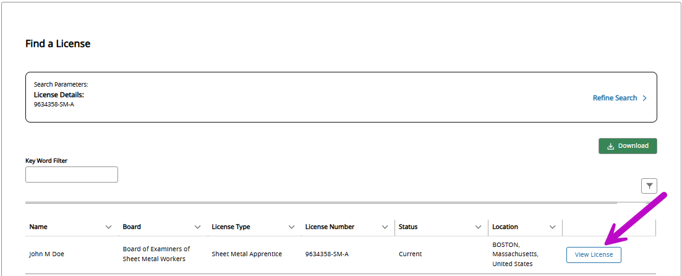
eLIPSE displays a License Detailed View box:
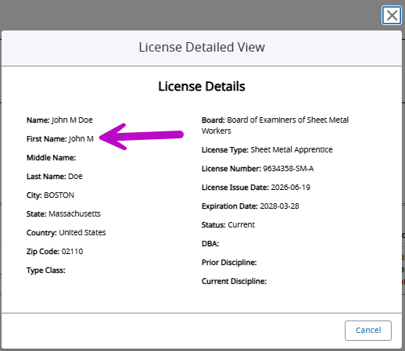
This box has what you are looking for.
Notice that in this example, the First Name appears as John M. That’s because when John first set up an account with DOL, John entered their first name as John M, with no period after. So that’s how John’s first name is in eLIPSE now. When John goes to set up a MyMassGov account, John must enter their first name as John M – no period after the initial, not just John, not a nickname they prefer to use now, no other variation.
The same thing holds for Last Name. The last name that appears here is the one a person used when they first set up their account with DOL. If their last name changed due to marriage or any other reason, they need to use the name as it appears here to set up their MyMassGov account.
Do not worry about Middle Name. MyMassGov does not use your middle name.
So, note for yourself how YOUR First Name and Last Name appear here. You can change how your first and/or last name will be in eLIPSE and on your license after you set up your eLIPSE account.
Now, click the Cancel button in the License Detailed View box.
eLIPSE returns you to the License Details screen. Click your browser’s Back control.
eLIPSE returns you to the DOL eLIPSE start page.
Now that you have your device with internet access and your email address, and you know how your first and last name appear in eLIPSE, you can click the log in link on the DOL eLIPSE start page (as shown below) to start setting up your MyMassGov account.

But before you do that, take some time to find out about the whole process.
Set up your MyMassGov account
The log in link brings you to the MyMassGov web site:
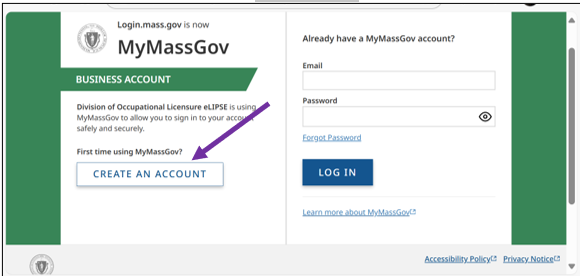
MyMassGov is a secure website that lets you use one account and password to sign in to all participating Massachusetts state services and applications, including DOL. Even if you are a longtime license holder, you need a MyMassGov account to manage your license. You log in to DOL through this MyMassGov page.
Please note that if you already have a personalMyMassGov account for signing in to RMV, DOR, or other Commonwealth agencies for personal matters, you will still need a business MyMassGov account.
To set up your MyMassGov account, on the left side of the screen, click the Create an account button. You will be creating a business account even if you are just one person with one license working for someone else.
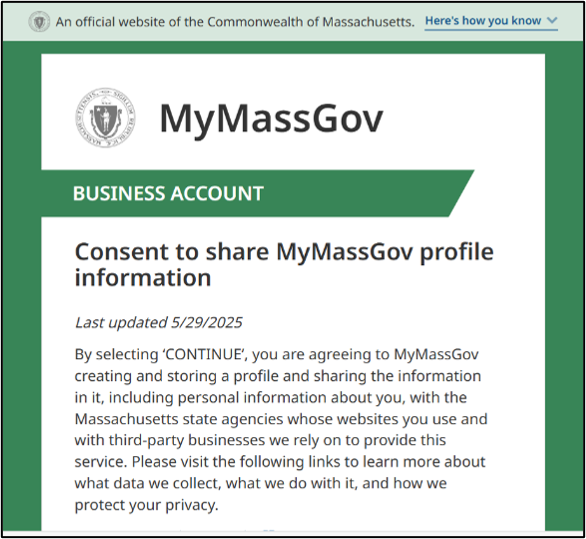
Next you will see a screen that asks you to agree to share the MyMassGov profile you are creating with DOL and other entities.
Read it carefully, and at the bottom, click the Continue button (not shown.)
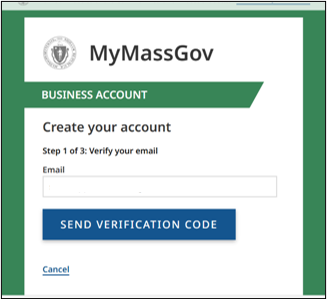
In the next screen,
- Enter the email address you will use for the account, and then
- Click the Send Verification code button.
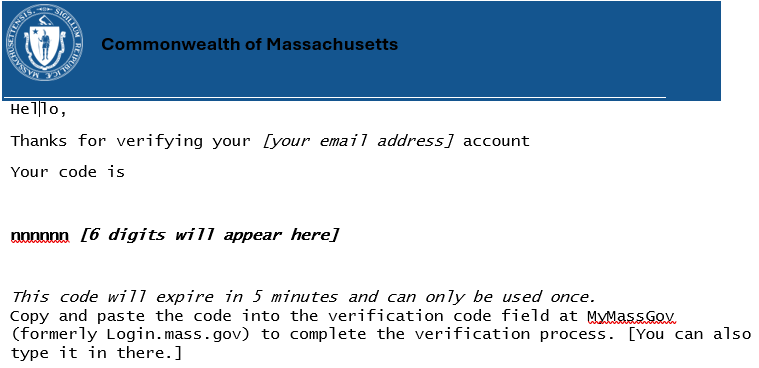
You will receive an email like this one from MyMassGov <login@noreply.mass.gov>:
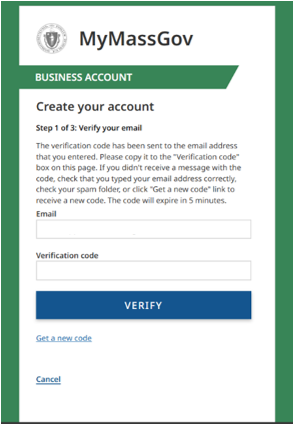
Return to the MyMassGov page, where you will see the Create your account screen.
Enter the verification code from the email, and at the bottom, click the Verify button.
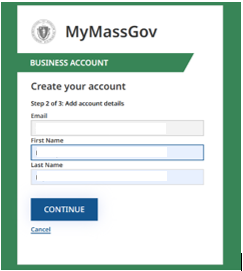
On the next screen, enter your first and last name exactly as they appear in eLIPSE, as you noted them before.
Important: Enter your first and last name exactly as they appear in eLIPSE, as you noted them before. Later in this process, eLIPSE will use your first and last name as they appear in eLIPSE (and other information) to locate your licenses and link them to your eLIPSE account.
On the next screen, create a password. The password rules are on the screen.
You will need to enter the password a second time to confirm it.
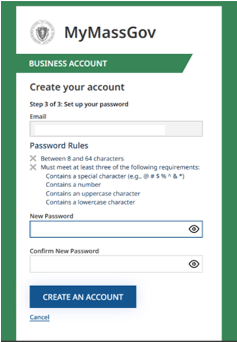
Then, at the bottom, click the Create an Account button.
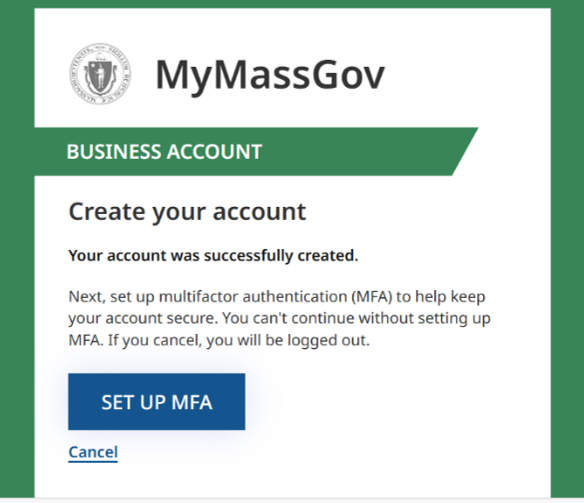
Great! You have created your MyMassGov account! Now you need to set up MFA, or “multifactor authentication.”
Click the Set Up MFA button.
Setting up multifactor authentication (MFA)
Be sure to have your telephone available. You will need it to complete the MFA setup.
What is Multifactor Authentication (MFA)?
It’s an additional confirmation of who you are when you log in. You have probably experienced this with banking, shopping, and other web sites and applications.
On the Set up multifactor authentication screen, choose how you want to perform the MFA.
Tip:The Phone method is a little easier, since you don’t need to install another application to use it.
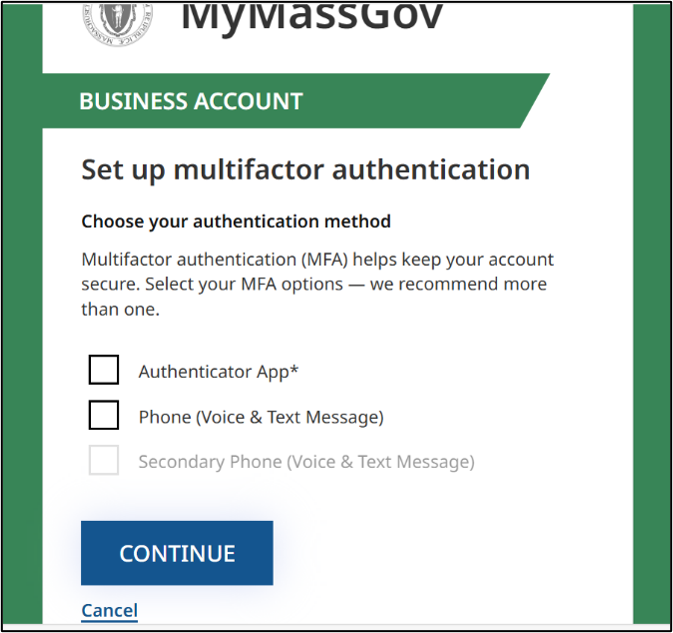
Choose one or more of the methods, and then click the Continue button.
This is how you set up the Phone verification method:
- Enter the telephone number where you can receive text or voice messages.
- Choose either Text Me or Call Me.
- At the bottom, click the Send Verification Code button.
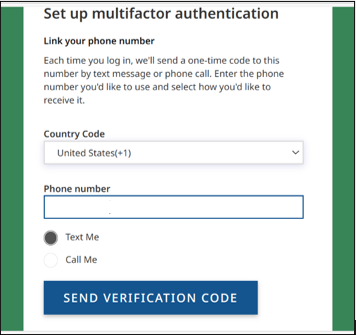
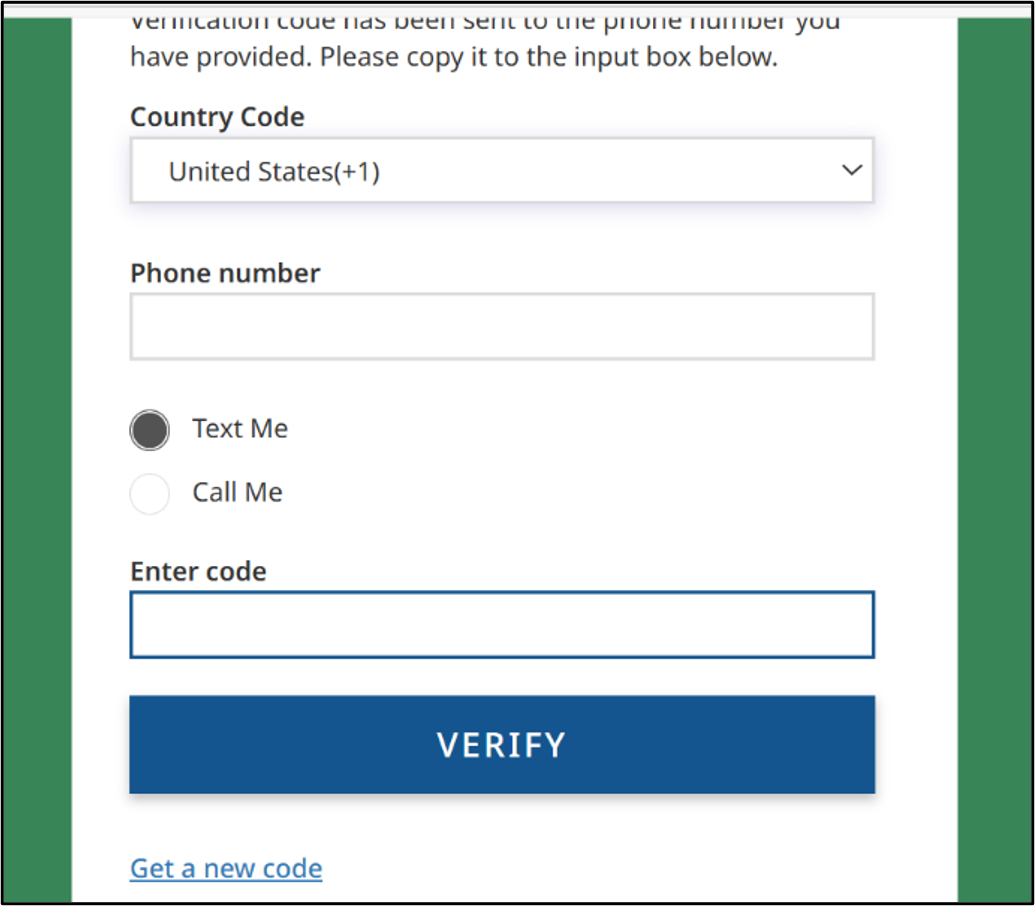
MyMassGov will send a text message (or call, if you chose that) with a verification code.
The screen opens another field for you to enter that code.
Enter the code, and then click the Verify button.
Congratulations! You are logged into eLIPSE!
Linking your license
Now you will see this welcome message from eLIPSE.
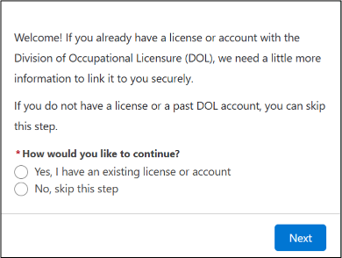
If you have a license, click the radio button for Yes, and then click Next.
- If you skip this step, you will not be able to manage your current licenses and permits in eLIPSE until you link your license(s.) You will be able to link in eLIPSE later, if you need to.
eLIPSE displays this box:
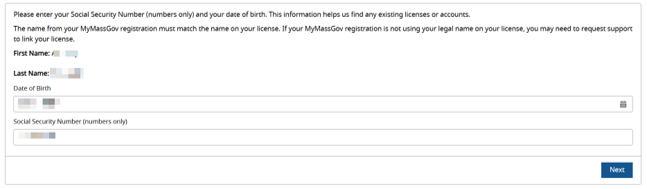
This is where you link your license(s):
- The box displays your first and last name as you entered them to create your MyMassGov account.
- Enter your Date of Birth.
- Enter all 9 digits of your Social Security Number. No dashes.
- Click the Next button.
eLIPSE will link your license to your MyMassGov account, and you will be in eLIPSE.
If eLIPSE cannot link your license, it will display this message:
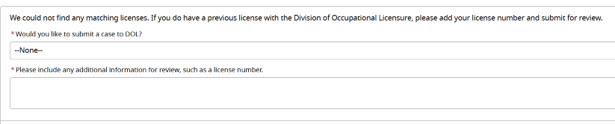
In the Would you like to…. drop-down, select Yes.
In the Please include… field, be sure to enter your license number. Enter the complete number if you have it (like 1234567-BC-LD), or if you do not, be sure to include your Board.
Why couldn’t eLIPSE link my license?
Usually this happens because the name already associated with your license in eLIPSE does not exactly match the name you used to set up your MyMassGov account.
If you have other questions about linking your license, at the bottom of the DOL page, click the Contact Us link.
Logging in to DOL’s eLIPSE in the future
Now that you are all set up with eLIPSE, to log in next time:
- Visit us at the DOL login page.
- Tip: To make it easier to find the DOL login page, add it to your web browser Favorites list. This is also known as “bookmarking.” Different web browsers do it differently, so search for help on that if you need it.
- On that page you can choose to click one of these:
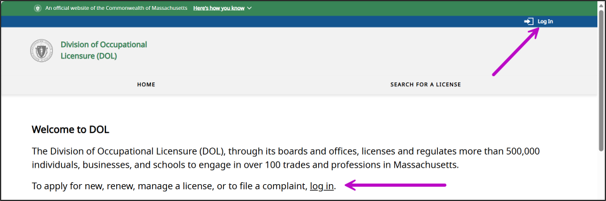
- In the upper right corner, click the Log in control.
- In the middle of the page, click the log in link.
- You will be taken to the MyMassGov login page:
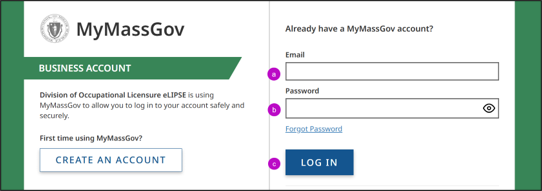
- Enter the email address you used to create the account.
- Enter your password for this account.
- Click the LOG IN button.
- MyMassGov will send you a code to enter to verify who you are.
- Enter that code in the MyMassGov screen.
You will be taken to your eLIPSE Home page.
Congratulations!
You are now ready to manage your licenses and permits in eLIPSE!
Remember, every time you go from the DOL web site to MyMassGov and log in to eLIPSE, you will be asked to use the multifactor authentication.
If you have questions about getting started, at the bottom of the DOL page, click the Contact Us link.
For more about MyMassGov, visit the Guide to using MyMassGov page.