

Court rules require all parties filing any document, including a brief or record appendix, in the Appeals Court to include consecutive page numbers in each document. This page explains how to add Bates page numbering using Adobe to PDFs, which is helpful when numbering a record appendix volume or multiple volumes.
How to Create Bates Numbering in PDFs Using Adobe
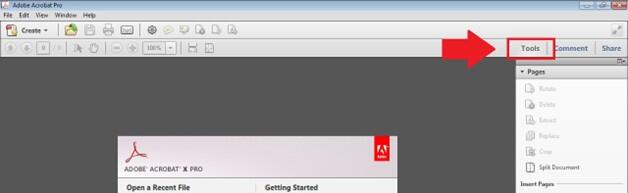
- Click the "Tools" button.
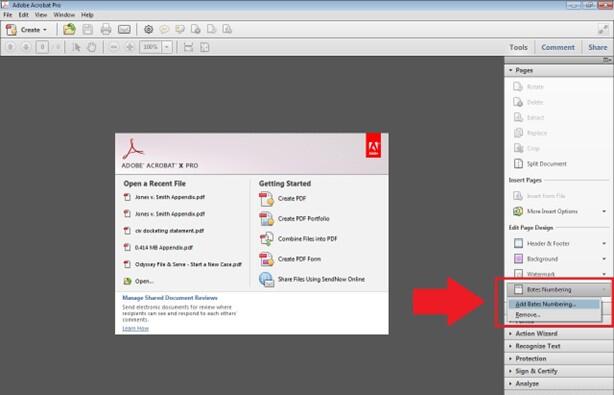
- Click "Bates Numbering" from the menu on the right hand side of the screen. Click on "Add Bates Numbering" from the dropdown menu.
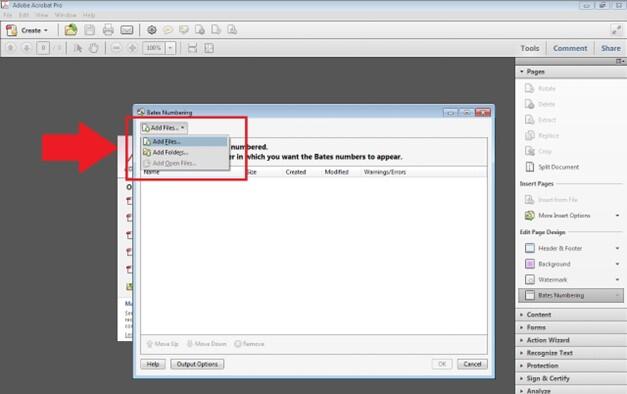
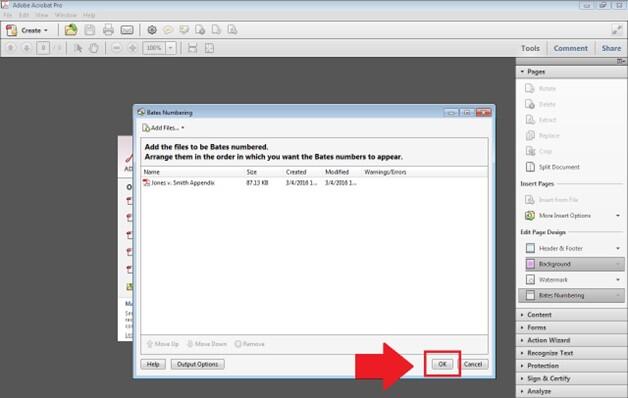
- In the Bates Numbering popup screen, click the "Add Files..." button and select "Add Files".
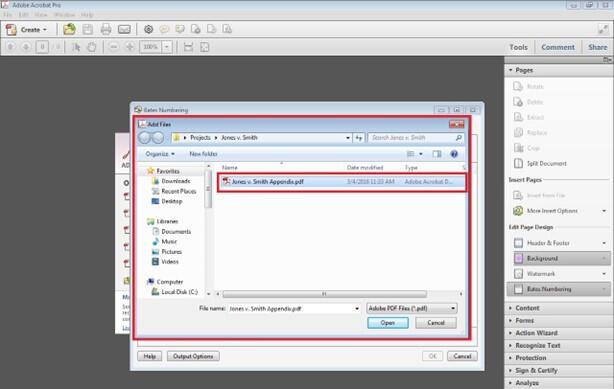
- Navigate to the file that you need to number. Double click it to open.
- Click "OK".
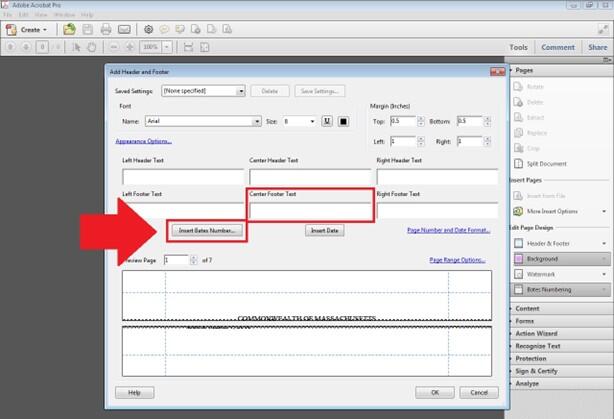
- In the Add Header and Footer popup screen, click into the field where you would like the Bates numbering to appear (e.g., Center Footer Text), and then click "Insert Bates Number".
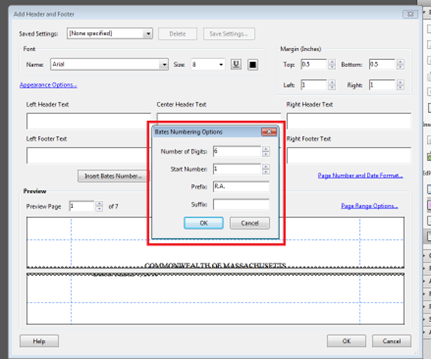
- In the Bates Numbering Options, select the amount of digits you want the numbering to contain, what page number the numbering should begin on, and any Prefix or Suffix that is needed (e.g., R.A. ). Then click "OK".
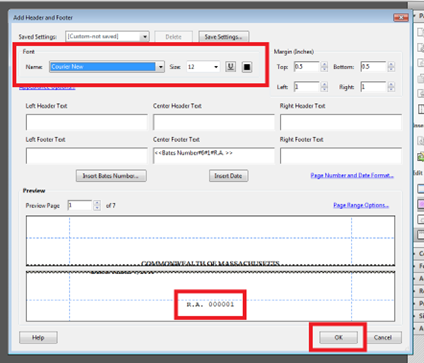
- Change the font type, size, and color as desired. Check at the bottom of the screen in the Preview pane that the numbering is appearing as desired. When you have your settings as you would like them, click "OK".
- You will receive a notification when applying the Bates numbering is completed. Click OK. The process is complete.
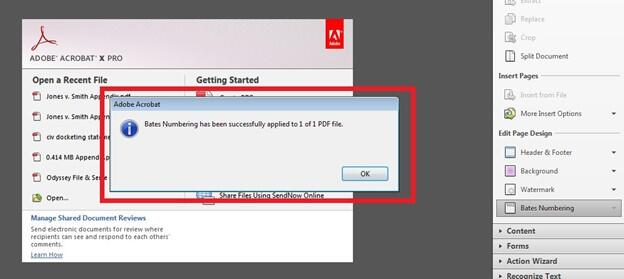
- Open the PDF file to be sure the Bates numbering is present.