
Go to the DCMS Dashboard to either begin a new application or access an application in progress.
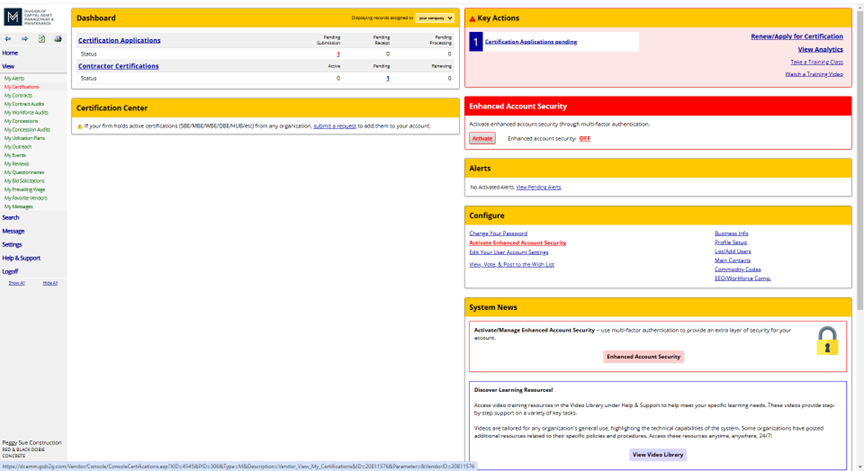
One of the 3 ways to access your Vendor Profile: Certifications on your Dashboard.
Under View, select My Certifications.
If you have an application in progress you can select the hyperlink from Certification Application or under Key Actions
- Accessing Your Current Application in Process
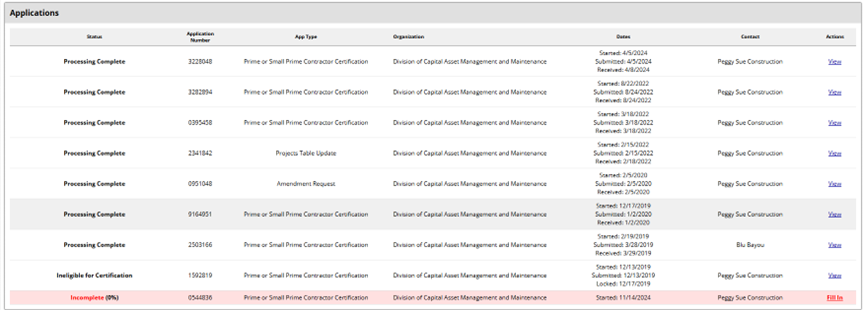
- Accessing Your Projects Table
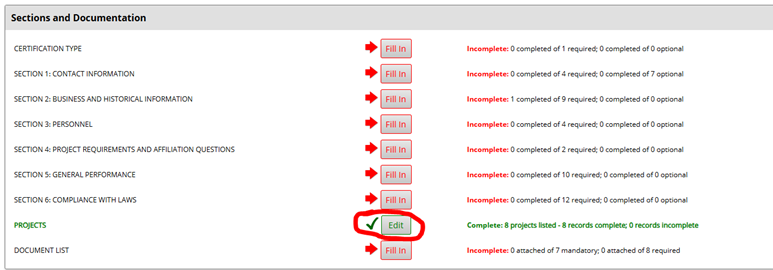
There are 2 ways to access your projects table.
While inside your application, you can click the Edit (for Renewals) or Fill in (for New Apps) buttons.
Also, inside your application you can select the projects tab at the top of the page.
- Sort your Projects Table By Contract End Date
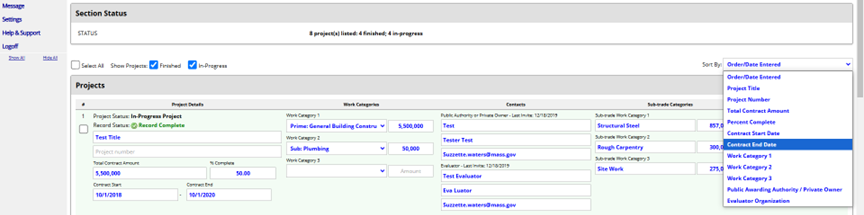
They will then be located at the top of the table
- Select the check boxes of the projects you want to remove from your projects table
Keep in mind, This Can Not Be Undone.
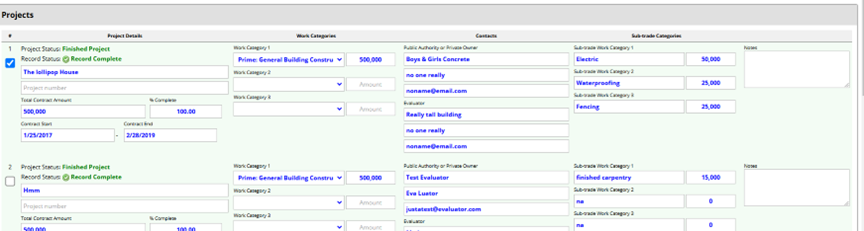
- Press Delete and Confirm your selection

Once you have selected the projects to be removed.
Scroll to the bottom of the page and press the Delete Selected Projects button
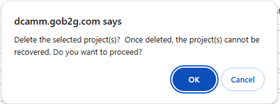
You’ll get a warning so you can change your mind here or press OK
- Review your Projects Table
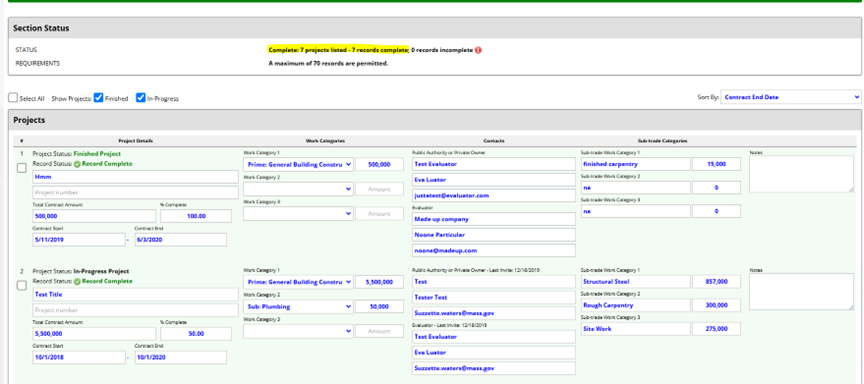
Now you will have a much more manageable table.