
Before you begin
Before you begin, please read important information below.
- Depending on how you access Azure AD integrated applications and services, there are up to three (3) “Actions” you will have to complete when you reset your password (described throughout this document).
- After resetting your password, you will not receive any new Outlook emails or Teams messages on your mobile device or PC until you have logged in with your new password(see Actions 2 & 3, below).
- If you are accessing the Azure AD Portal from a Commonwealth-issued device (your own or a colleague’s device), Azure AD may automatically sign you or your colleague in using stored credentials. If this happens, you will need to sign out from the account so you can click ‘forgot password’.
- It make take up to 5 minutes for your password reset to take effect. If you try to log in with your new password and it is rejected, please wait a few minutes and try again.
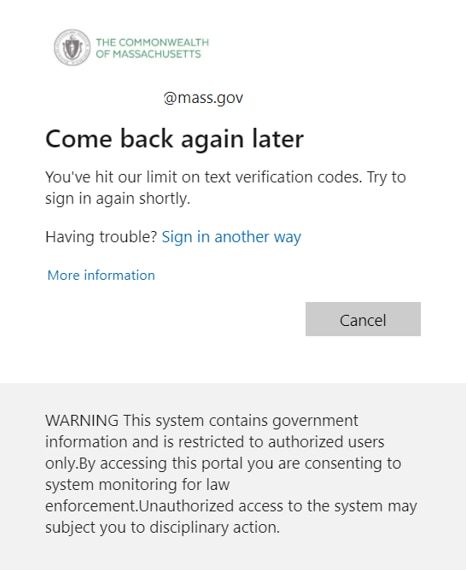
- There is a limit of nine (9) verification codes you can be sent. If you receive the below error message, please wait a few minutes and try again.
Action 1: Reset your Azure AD for MFA password
Step 1
From your internet browser, go to the Microsoft account settings page.
Step 2
Click on your account.
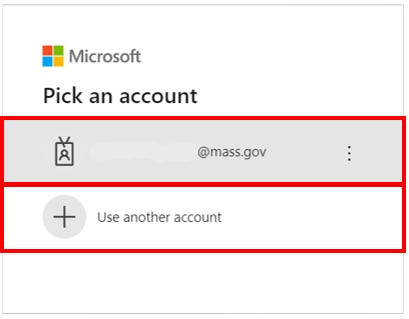
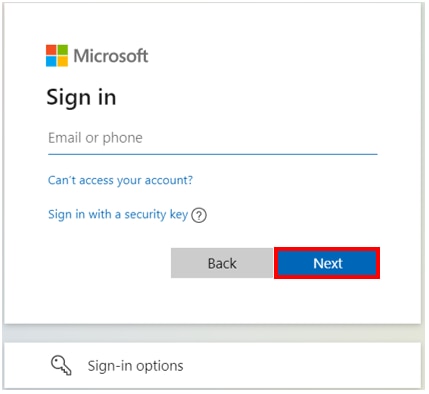
If your account is not shown, click “Use another account”. Enter your username and click “Next”.
Step 3
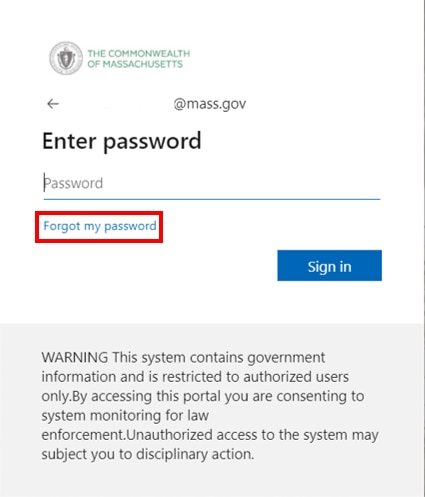
Click “Forgot my password”.
Step 4
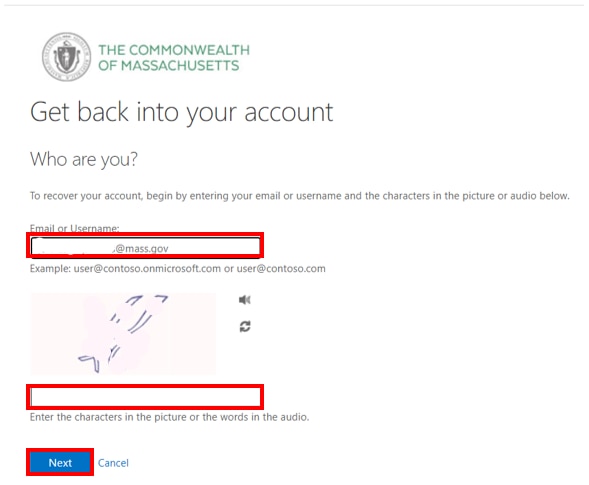
Enter your username (if it is not already populated) and enter the characters/words from the captcha screen. Click “Next”.
Step 5
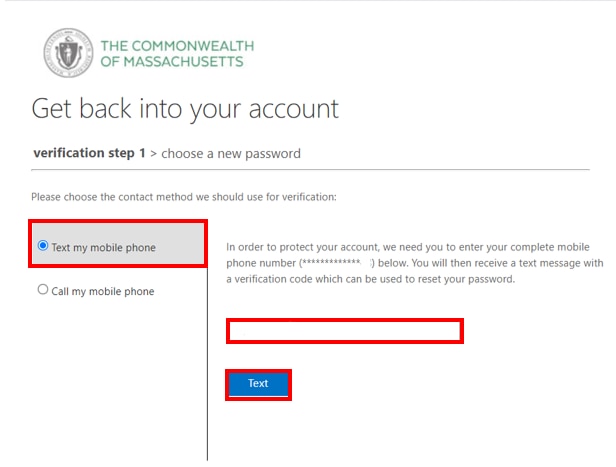
Select a contact method and enter your contact phone number. Click “Text” or “Call” (depending on your chosen contact method).
Step 6
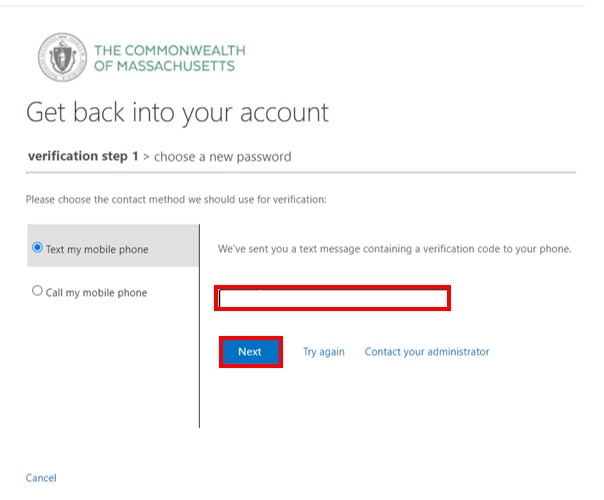
Enter the verification code you were sent and click “Next”.
Step 7
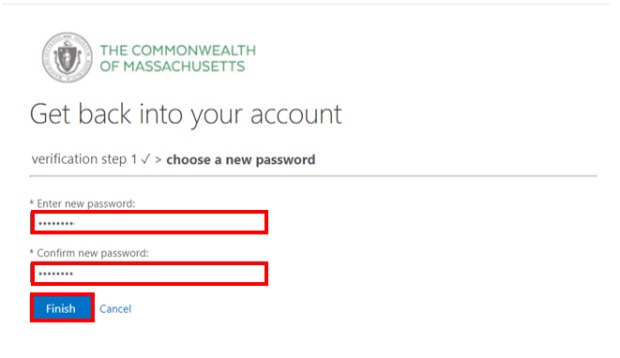
Enter and confirm your new password and click “Finish”.
Step 8
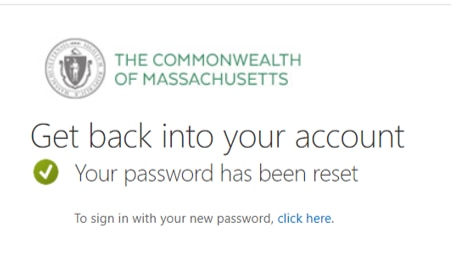
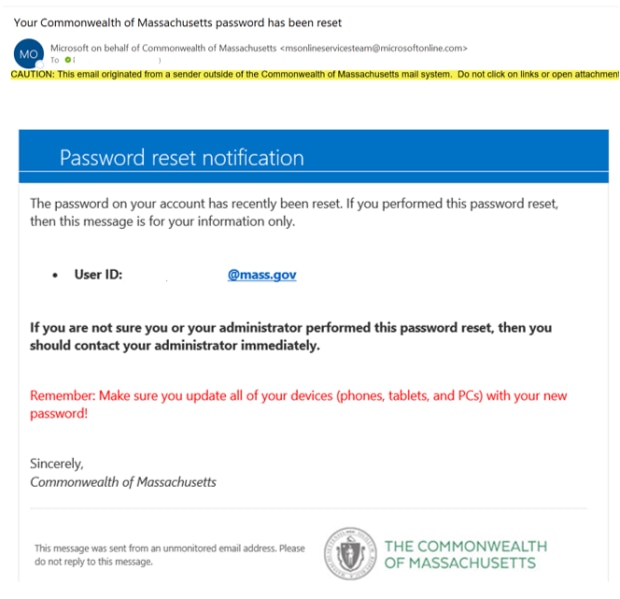
You will receive both an on-screen and email confirmation once your password has been reset (see below). Almost there…
Step 9
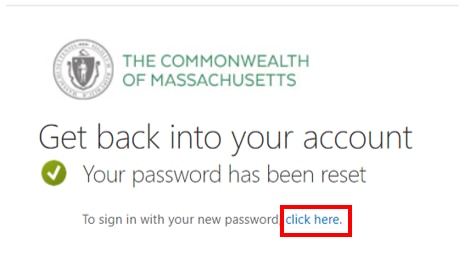
Click “click here”, then follow the prompts to sign in with your new password.
IMPORTANT: It make take up to 5 minutes for your password reset to take effect. If you try to log in with your new password and it is rejected, please wait a few minutes and try again.
Action 2: Log back into your PC and applications
Once you reset your password, you will automatically be prompted on your PC to log into Azure AD for MFA.
Step 1
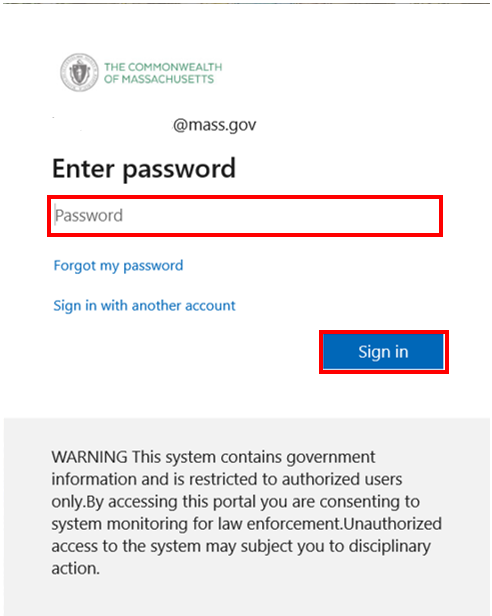
The below screen will “pop up” with your username prepopulated. Enter your new password and click “Sign in”.
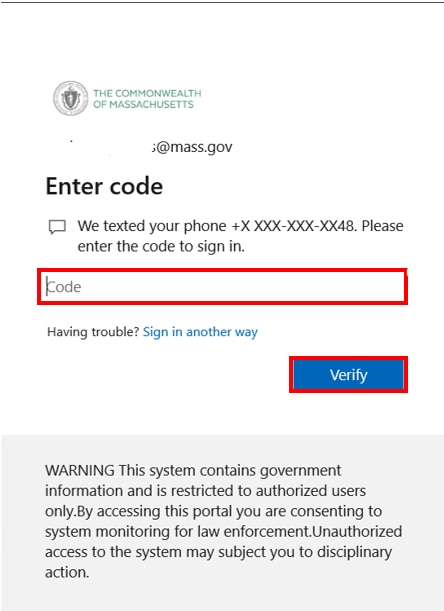
Step 2
Enter the code you were sent and click “Verify”.
Step 3
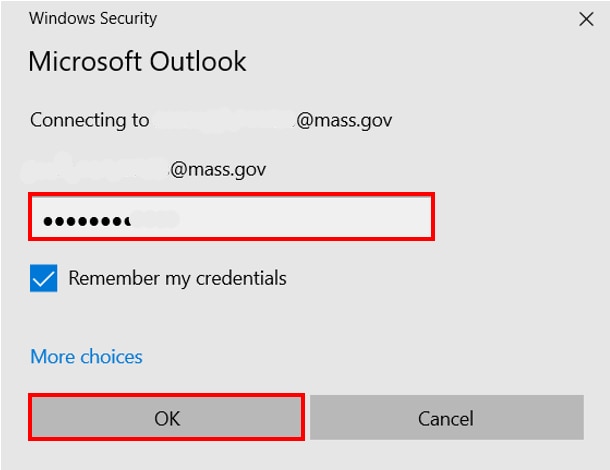
This Step applies only if you are working off the network/remote. If you are on the Commonwealth network (at your work location), you may not receive the below prompt.
If the below screen “pops up”, enter your new password and click “OK”.
Step 4
If any of your Microsoft O365 applications show an exclamation mark within a yellow triangle/will not sync, you will have to log back into that application.

Click the error message or, if available, the link “Click here to sign in”.
Azure AD will automatically sign you back into the app with your username and new password – you do not have to enter your credentials again!
Action 3: Log back into your mobile applications
IMPORTANT: If you use any Azure AD integrated mobile applications on your mobile device (phone/tablet), you will also be prompted to log in with your new password on your mobile device the next time you open the application. This means that you will not receive new Outlook emails or Teams messages on your mobile device until you have logged in with your new password.
Step 1:
Open a Microsoft O365 mobile application from your smartphone or tablet.
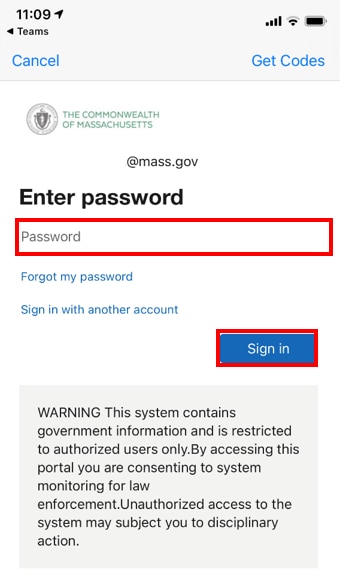
Step 2
An authenticator screen will open. Enter your new password and click “Sign in”.
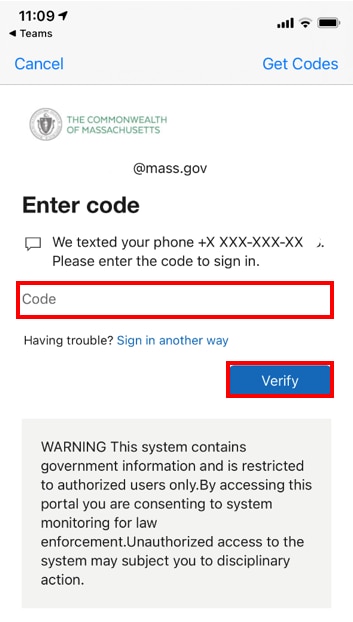
Step 3
Enter the code you were sent and click “Verify”.
Contact
Phone
Support for Commonwealth end users and IT support personnel
| Date published: | July 25, 2018 |
|---|---|
| Last updated: | June 29, 2021 |