
Log in to your DCMS Account
On your Dashboard you will see your Contractor Certifications

On the status line click the number under Active and this will bring you to your Vendor Profile: Certifications

Go to the Applications Section and Click View on your most recently submitted application. This will open your application so you can view all the completed sections. You will not be able to change any of the previously submitted answers.
NOTE: If you are not the creator of that application you will not be able to view it unless granted access to it.
To Print the Projects Table
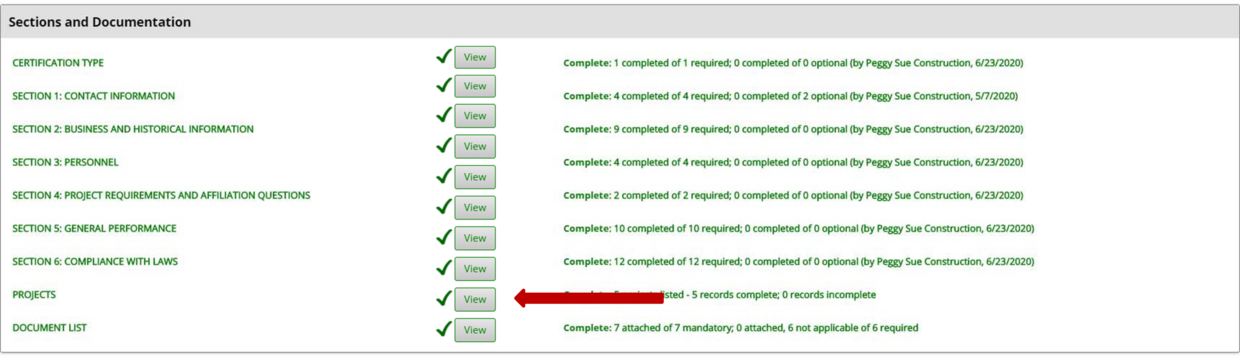
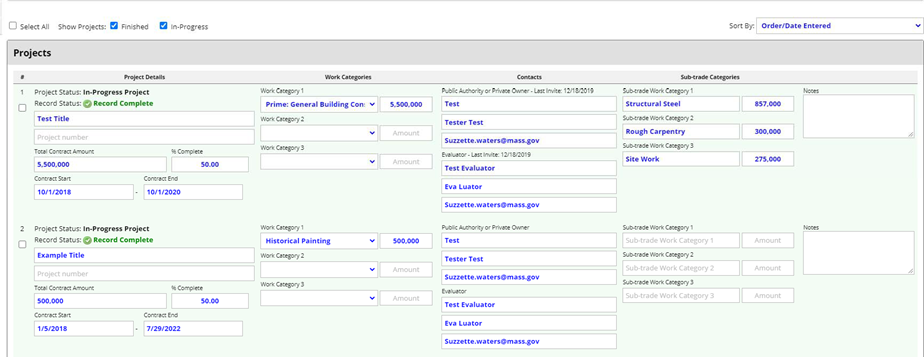
At the bottom of the project Table you have 3 choices
- Export List: This will export all your projects to an Excel Spreadsheet
- Print This Page – Will send your projects list to a printer you select
- Print To PDF – Which can be downloaded to your computer as a PDF for later use or send to your selected printer

To Print the Signature Page from your Application

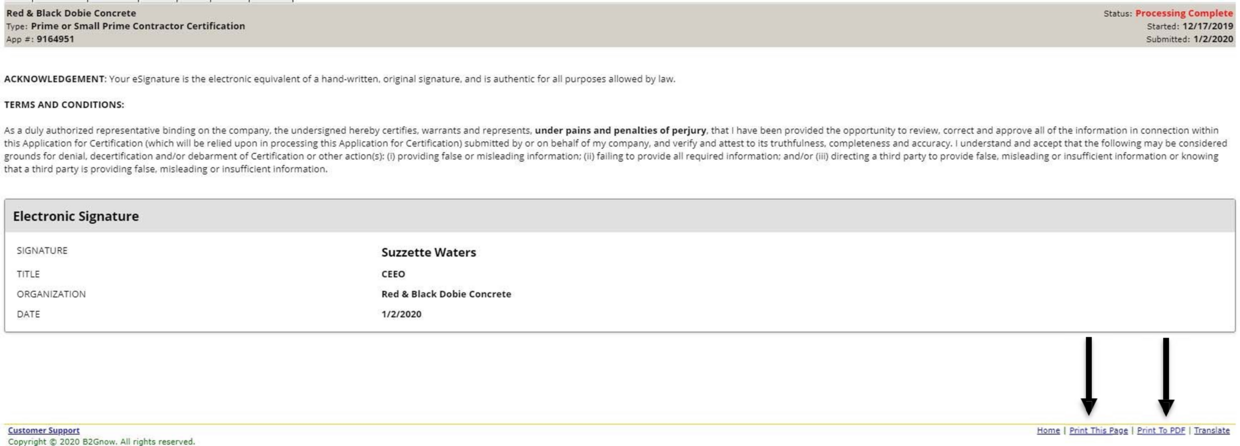
At the bottom of the Signature Page you have 2 choices
- Print This Page – Will send your Signature page to a printer you select
- Print To PDF – Which can be downloaded to your computer as a pdf for later use or send to your selected printer