
Advantage of being a Registered User by creating an account you could save the evaluation you are working on, make modifications as needed, respond to DCAMM comments or questions and more.
If you have documents, you would like to be send to DCAMM with the evaluation you will be able to attach them to the evaluation form.
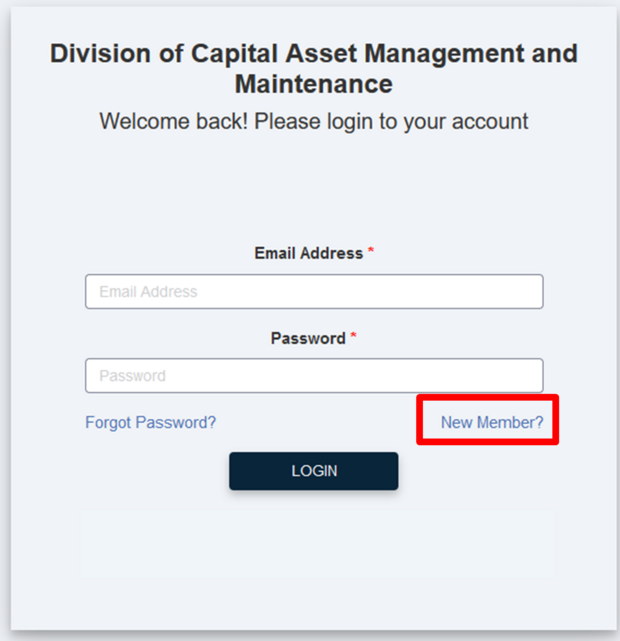
To become a Registered User Select New Member? This will open a dialogue box for you to complete.
If at anytime while completing this process you have difficulty you can press Contact Support for assistance.
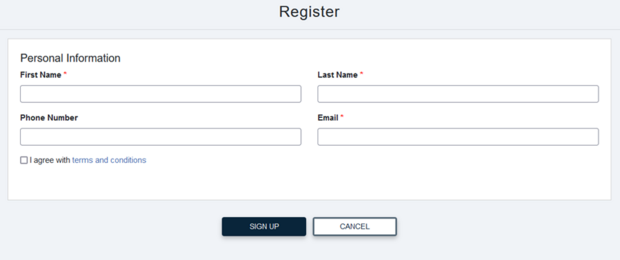
Fill in your First Name, Last Name and Email Address, these are required fields and necessary to start the evaluation process. Phone number is optional.
Once you have completed the required fields, read the Terms and Conditions, then check the agreeing with them Press Sign Up button to continue.

In the mailbox you used to register your account you will receive an email with your Username and Temporary password.
You will be able to login to the Evaluation Portal with your Username (your email address) and the temporary password, you will be prompted to change it to something you will remember.
The Password requirements are 12 characters long and 1 letter.
Once you have successfully logged in you will be brought to your dashboard.
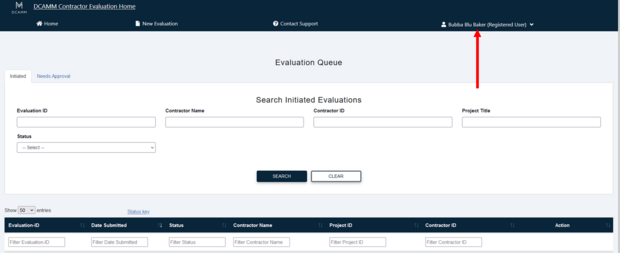
This is your Dashboard. You will see your name in the upper right hand of the screen when you are logged in.

To begin a new evaluation select the New Evaluation button at the top of the screen.
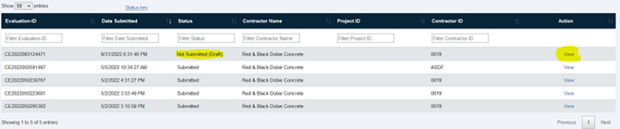
If you are returning to complete an evaluation already started you will see it listed as Not Submitted (Draft). Select View and you can pick up where you left off.
Once the evaluation opens you will have to close the View Only mode to edit the document and select Edit at the bottom of the page.
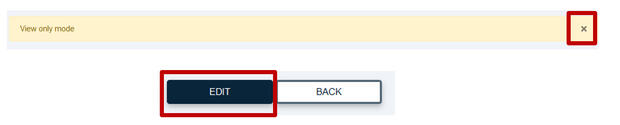
Signing into the portal as a registered user, you will be able to save and return to complete the evaluation, it does not have to be done in one sitting.
You will also be able to respond to questions within the system if a DCAMM Compliance Officer may have about your answers.
You will not be able to access evaluations you previously submitted.
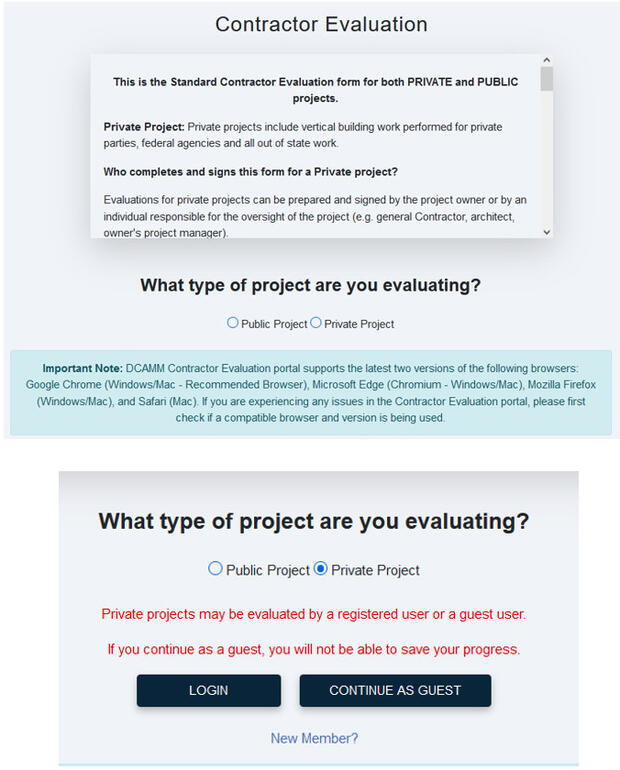
Public Project – are projects that are put out by a Public Entities within the Commonwealth of MA and governed by Mass General Laws.
Private Project – are projects that are put out by private citizens, private organizations, all other states or the Federal Government.
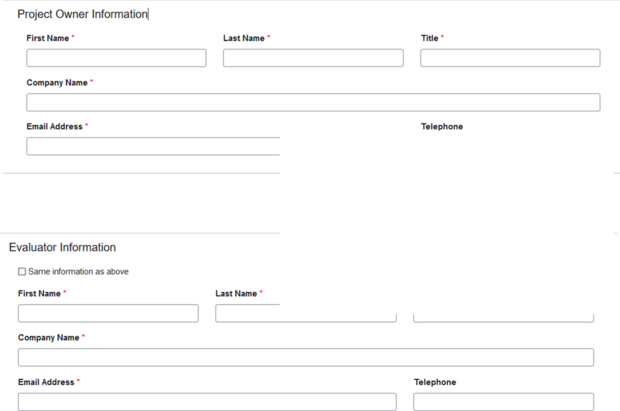
Project Owner is the person/organization that owns the property were the project is being done.
Evaluator Information is the person that can best evaluate the contractor’s performance on the project.
If they are the same person, check the Same Information as above checkbox and the Evaluator Information will auto-populate with the information from the Project Owner.
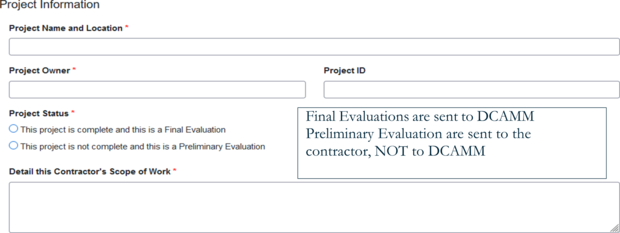
Final Evaluations are sent to DCAMM Preliminary Evaluation are sent to the contractor, not to DCAMM.
Project Name and Location – Be as specific as possible. This allows us to distinguish one project from another. Distinctive project titles eliminate questions and vagueness.
Project ID – If you have one, list it, this assists us with project ambiguity.
Contractor’s Scope of Work - This field should describe the work that a contractor performed on a project pursuant to its contract. The scope should be specific to each contractor who worked on a project.
One evaluation per contract. If a single contract covers more than one Scope of Work for a single contractor, that should be noted in the Scope of Work.
If there is more than one Scope of Work and they are covered under separate contracts, there would have to be two separate evaluations: one for each Scope of Work.
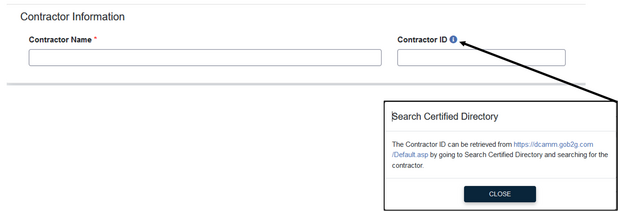
If you are unsure of a contractor’s certification ID you can click the blue dot and be taken to our Online Directory, type in the contactor name and get the ID from there. This will ensure that evaluation is applied to the correct contractor.
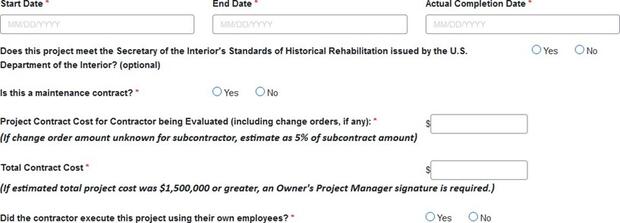
Maintenance Contract - Completion of a maintenance contract means that the full term of a maintenance project is complete. Maintenance contracts with automatic extensions do not qualify until the entire contract is complete.
Project Contract Cost for Contractor – Was the contractor part of a larger project? List the dollar amount for which they were contracted.
Total Contract Cost – The full cost for the whole project.
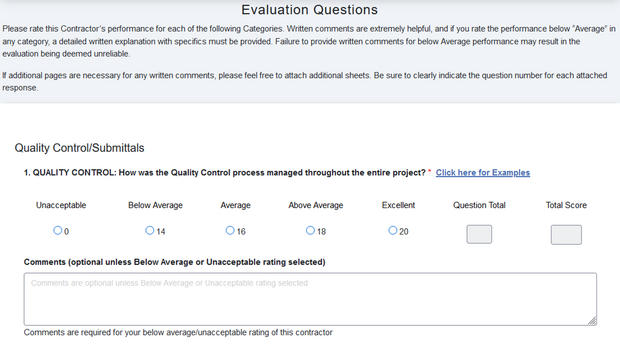
This is the beginning of the evaluation form and a representation of the way the questions are set up. By selecting the appropriate response to the question, the form will automatically score the evaluation. If you select a rating of Unacceptable or Below Average, you will be required to add a comment as to why you chose that rating. Kindly be as detailed as needed. You will be able to attach any additional documents at the end of the evaluation to support your response, if needed.
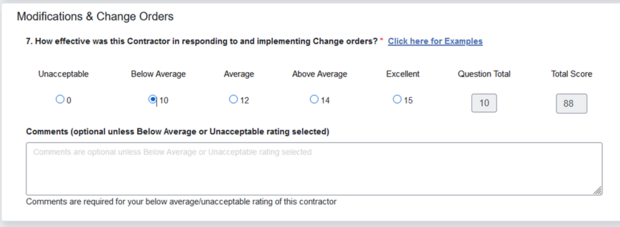
If you rate any of the questions Below Average or Unacceptable, you will be required to add comments before you will be able to submit your evaluation form.
A dialogue box will open and let you know comments are needed and the question title.
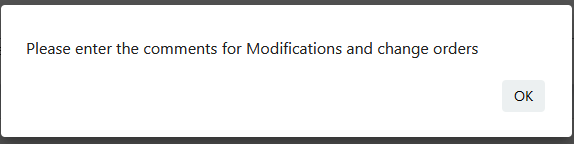
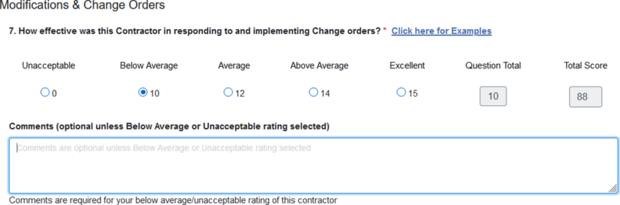
If you rate any of the questions Below Average or Unacceptable, you will be required to add comments before you will be able to submit your evaluation form.
A dialogue box will open and let you know comments are needed and the question title.
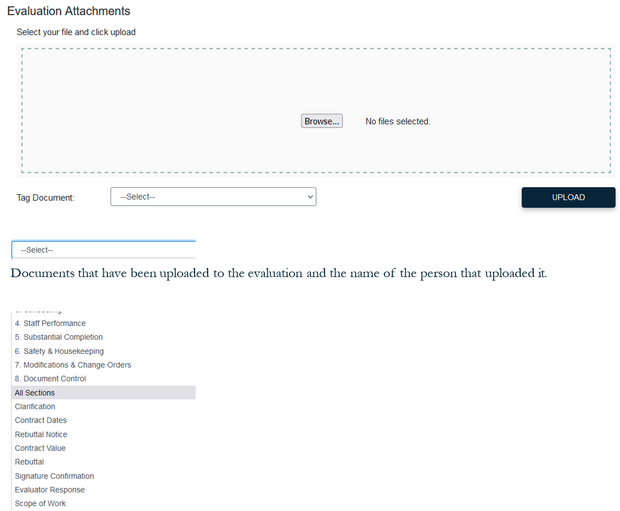
Particular questions of the evaluation form you can do that by selecting the correlating section and uploading the document (see Tag Document drop down list).
You can add documents to each evaluation question, if needed.
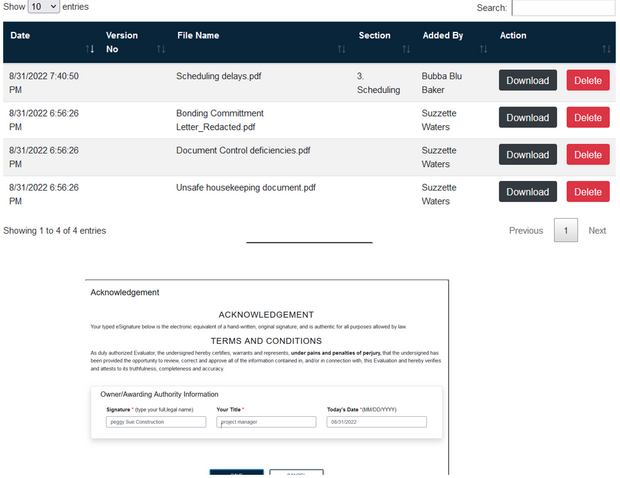
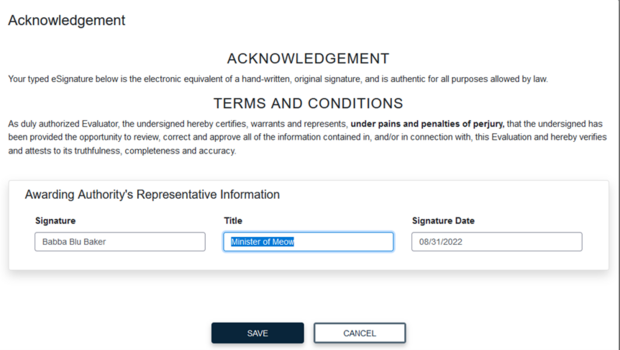
Once you sign the digital evaluation form, it will send it to the Evaluator for signature.
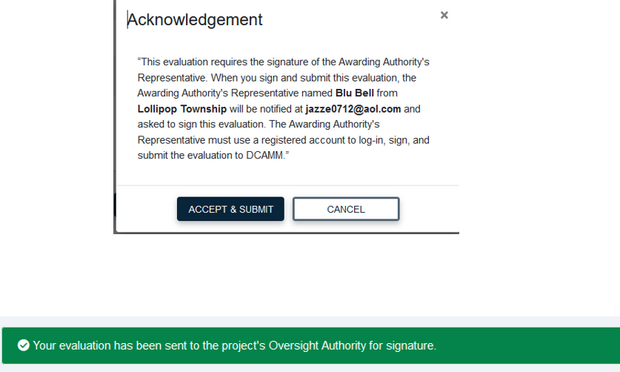
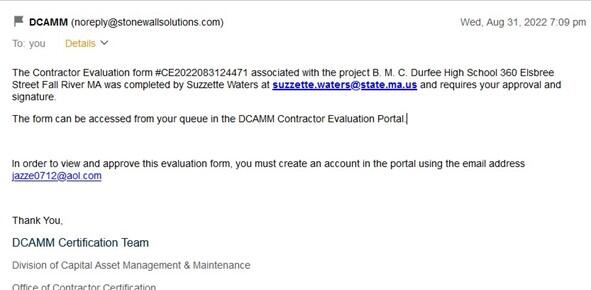
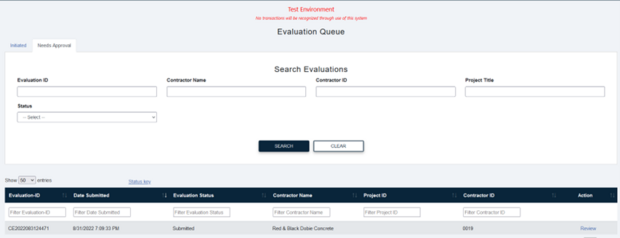
You will also receive an email from the Evaluation Portal confirming the submission of the evaluation with the name of the project.

Once you have saved the evaluation you will be brought back to the Welcome screen, and you will see a green bar across the top confirming your evaluation has been submitted to DCAMM Certification.
Contact
Online
Phone
Leave a Message