
Verifying a license
If you would like a certified license verification or letter of good standing from your board:
- Log in to eLIPSE using your MyMassGov account and verify your identity.
- Go to the bottom of your eLIPSE Home page.
- Click the button for License Verification Request:

- Follow the instructions and answer the questions to indicate which license you would like verified. Be sure to enter all information correctly.
- After you complete those questions, you will see a screen like this one:

There is a $15.00 fee for verification.
At the bottom of the screen, click the Next button.
- eLIPSE will show you this screen:
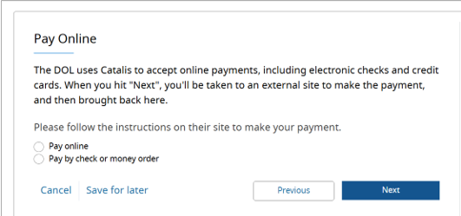
Click the payment method you would like to use, and then click the Next button.
- If you select Pay Online, eLIPSE will inform you about paying online on a separate web site:

Click the Next button.
- You will be taken to the payment website:
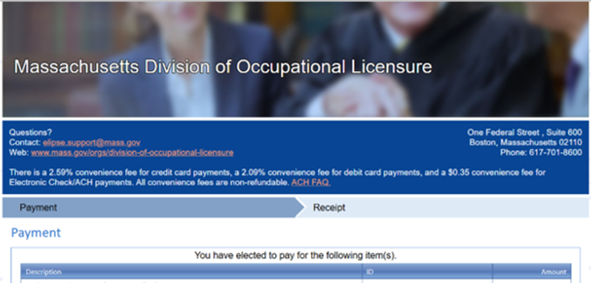
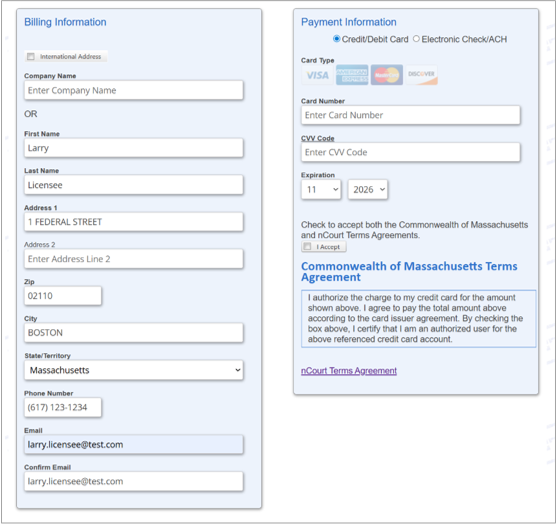
- Follow the steps on the payment page to verify the Billing Information that is already there, and then enter the Payment Information:
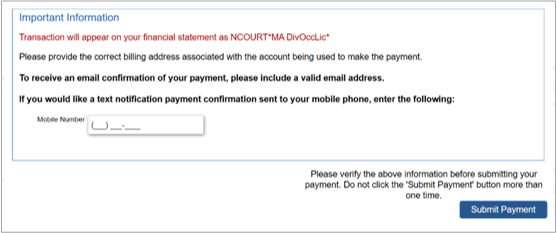
- Click the Submit Payment button:
- The payment site will display a Payment Confirmation screen:
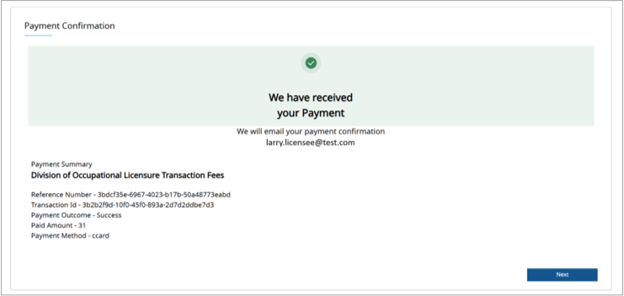
Click the Next button.
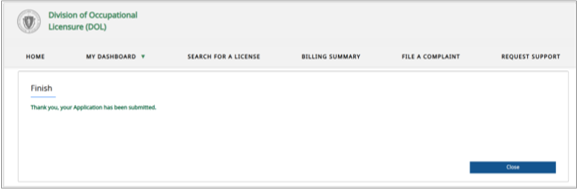
- You’ve completed the payment process. Click the Close button.
What happens next
- DOL will contact you regarding your verification request.
- To view your verification request: on any eLIPSE screen, in the top banner on the left side, click My Dashboard, and from the drop-down, select Cases.
Contact
Online
Phone
MassRelay (TTY & ASCII)
Call Division of Occupational Licensure, MassRelay (TTY & ASCII) at 711