
How to add a party in a representative capacity to a case when electronically filing the case through Tyler Odyssey File & Serve
Representative capacities have three parts:
- First Part: Representative (Individual or Business)
- Second Part: Represented Party (Individual or Business)
- Third Part: Capacity
When you add a representative party in Tyler Odyssey File & Serve, you must add the Representative and save it before you add the Represented Party and Capacity. The Tyler application makes it appear that you are adding two separate parties when you are only adding one. Don’t let this confuse you.
In the Party Information section, take these steps:

- Add the Representative as a party to the case (plaintiff, defendant, petitioner, or another party type).
- If the party is an individual, fill in the first and last name.
- If the party is a business, check the box to indicate that it is a business and enter the name of the business.
- Enter any optional fields.
- Click the Save Changes button. It looks as if you have added a party, but you are not done.

- Take the following steps to add the represented party, which will include the second and third parts (Represented Party and Capacity).
- Click the Add Another Party button and take the steps below.
- Check the box labeled This is a Represented Party.
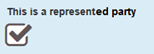
- Notice that the Party Type changes to Represented Party.

- If the represented party is a business, check the box labeled Party is a Business/Agency. Enter the Represented Party (individual or business), name and information, and click the Save Changes button.
- Take the following steps to add the details (the Representative and the Capacity).
- Notice that the Tyler application has moved you to the Filings section. Don’t let this confuse you. Scroll back up to the Party Information section and put your mouse on the Represented Party and click on it.
- Once you’ve opened the Represented Party, scroll down and click the Add Party Representative button.

You will see the Representative drop-down box and the Capacity drop-down box.
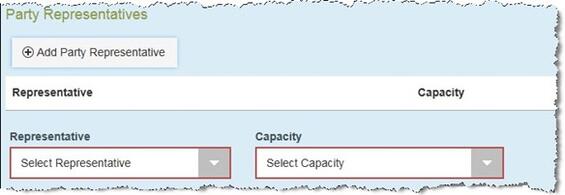
- For the representative, click the Representative down arrow.
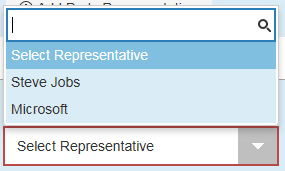
You see a list of parties that you have added. Select the Representative party that you added in Step 1.
- For the capacity, click the Capacity down arrow. Select the Capacity from the list.
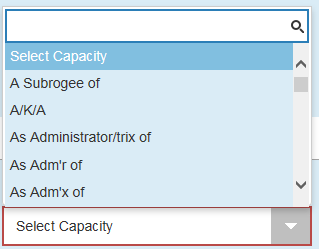
- Click the Save Changes button.
- In the Party Information section, it looks like you have three parties, but two of them will be combined.
Example
The following screenshot shows the Party Information section of the Tyler Odyssey File & Serve Screen. The Party Information section does not show the capacity and it does not clarify which party is associated with the represented party. Do not let that confuse you.
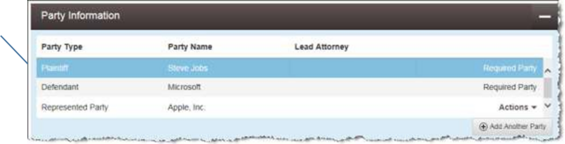
Figure 1. Party Information showing the Parties as they appear in the Tyler Odyssey File & Serve Application.
The representative capacity is Steve Jobs As officer of or agent for Apple, Inc.
- Finish filing the case. Once it gets transferred to the MassCourts Case Management System, two parties will show on the case.
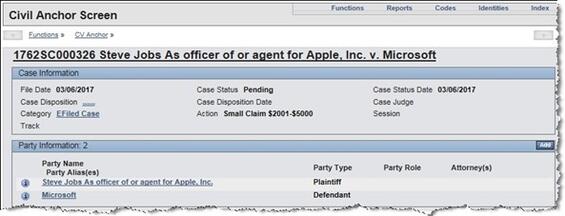
Figure 2. Parties in the MassCourts Case Management System.
Party as both individual and representative
If you use a party entry as a Representative, the party will not be entered as an individual party.
If the filing includes the party both as a representative and an individual, you must enter the party name and information a second time.
For example, if you've entered Steve Jobs as a Representative, and you want Steve Jobs entered as an individual party as well, you must click the "Add Another Party" button, and again add party information for Steve Jobs as a Plaintiff. Steve Jobs will appear twice on the Party Information Screen.