
Once you login to your account you will land on your Dashboard.
From here you will be able to start a new application, return to an in-progress application or submit an amendment.
On the right-hand side of your screen you will see Key Actions, this is where you start.
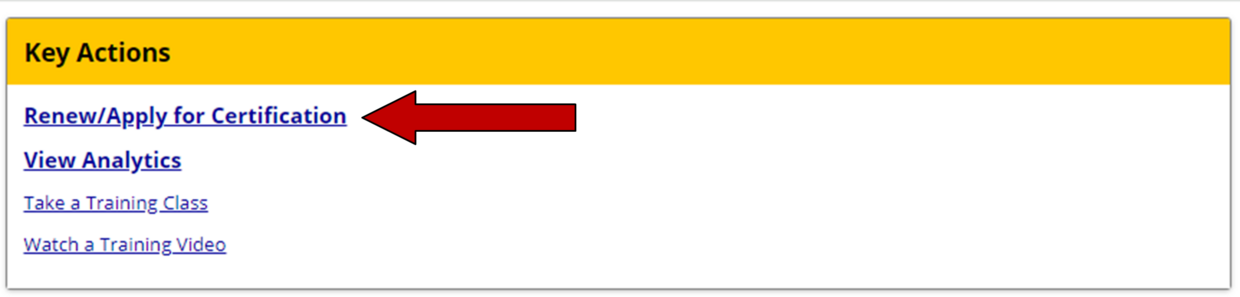
Click here to start your certification application
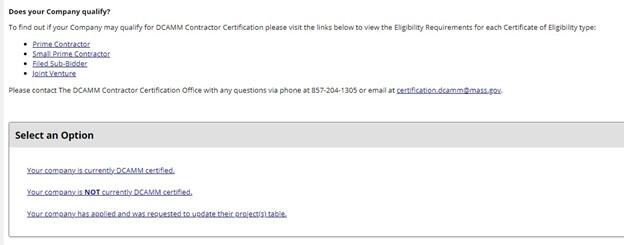
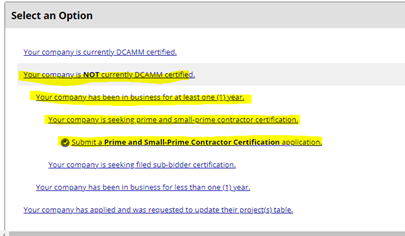
Questions will open under each link
Click your answer until you get to Submit a Prime and Small Prime Application
This will take you to the Company and Contact Information before you start the Certification application
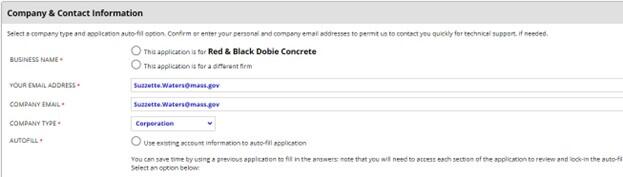
When you get to this section of the application it will copy the company information from your Vendor profile to the application for you.
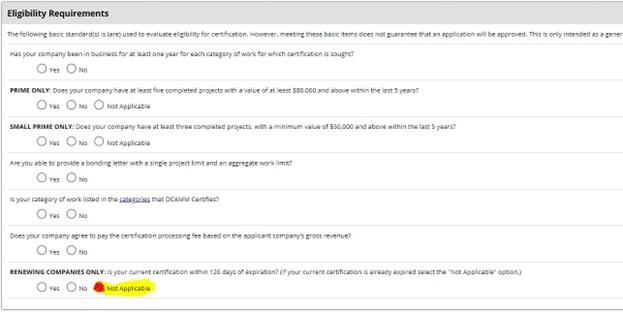
Answer these questions to move forward
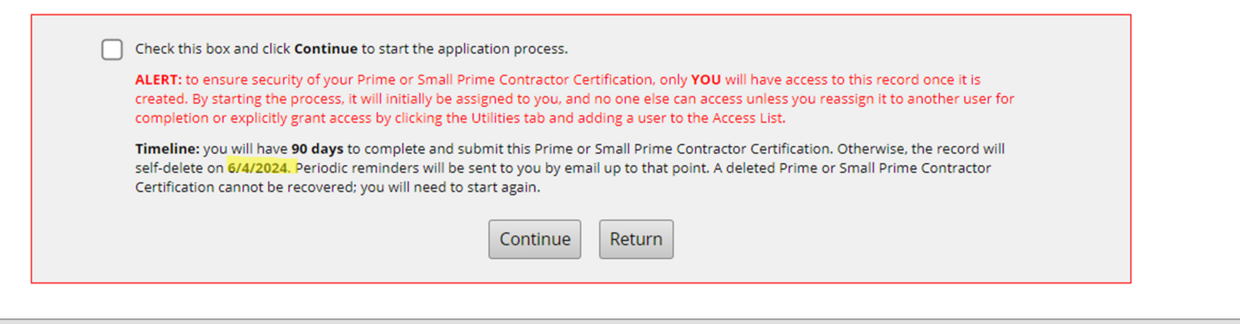
Check the Checkbox and Press continue.
Notice in this box it listed the date your application will be deleted if left uncompleted after 90 days
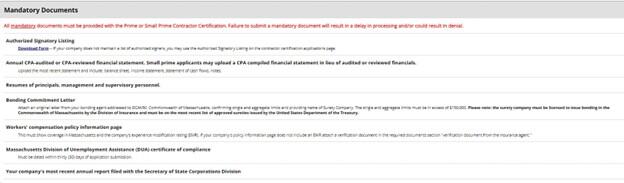
This is the list of documents you will have to attach to your application before you can submit it for review.
These are the documents listed on the Certification Type checklist.
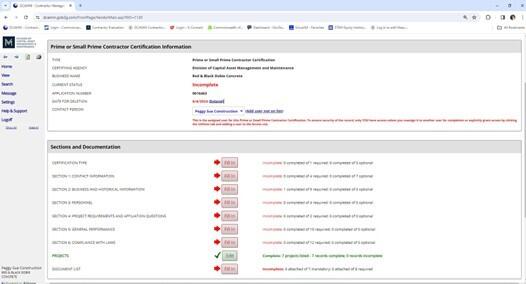
This is our online application.
When you first apply you will see all the boxes are red. Click Fill in to access each section.
Once you complete a section it will change to green if you have answered all the questions in that section. If it hasn’t you may have missed a question. (See the example below)
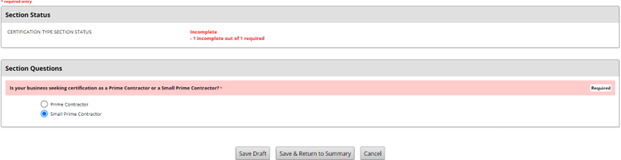
Answer the question and press Save and Return to Summary
This will bring you back to the application
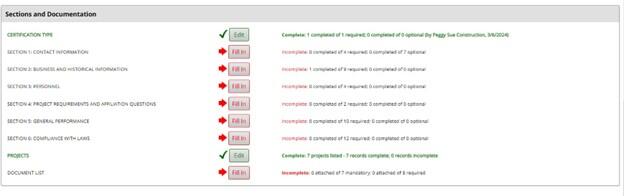
You will see the Fill In button has changed from Red to a Green Edit button.
This lets you know this section is complete. You are still able to edit it if you need to by pressing the Edit button for the section.

Before you can move to the Signature and Submittal section of the application, the previous sections must be complete.
If you notice you started the wrong application, you can Press the Delete button at the bottom but know once the application is deleted there is no way to bring it back.
Returning to complete your application
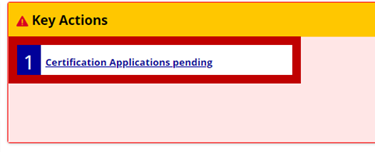
If you leave your application, click here to go back to it.
On your Dashboard you will see this
Click it and you will go back to your incomplete application

You will find your Incomplete application at the bottom of the Application section, and it will be highlighted in pink to make it stand out.
Click Fill in to go back into your application
If you need assistance in completing the Projects Table in the application, you can find the user guide on our website that will assist you