
Learn about Digital Accessibility
In Massachusetts, 26% of residents self-identify as having a disability of some kind. The Commonwealth is doing its part by improving design, policies, and applications so they can be used with assistive devices, if you need more time, or have a hard time with technology. This page provides some ways to test your technology for accessibility and resources to help you understand what it means to build a website or device with digital accessibility and inclusive design.
Set up your Apple products to be accessible
Set up your PC for accessibility
Set up your Android for accessibility
Tips and tricks for testing web accessibility
Test your site or application for keyboard-only user support
Navigate your site using just the keyboard (don’t use your mouse).
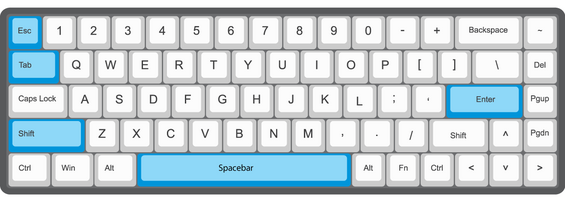
Use the tab key to navigate forward and the shift + tab keys to navigate backward.
When tabbing check for a visible border around links, buttons, and form fields.
Keyboard navigation key functions:
- Tab: Moves focus to the next interactive element (i.e., link, button, form field, etc.)
- Shift + Tab: Moves focus back to the previous interactive element
- Enter: Activates a link
- Enter or Spacebar: Activates a button
- Enter: Submits a form if the focus is on the submit button or activates the selected element
- Esc: The Esc (Escape) key closes a dialog box or menu
Test your site for browser zoom and mobile device support
One purpose of this test is to verify that all content reflows (external link) on the page, that content is not truncated, clipped, or cut off and that you don’t have a horizontal scrollbar.
Increase browser zoom up to 400%
Slowly increase your browser zoom starting at 100% until you reach 400%.

- To increase browser zoom
- Windows: use the Ctrl and + (plus sign) keys
- Mac: use the ⌘ (Command)and + (plus sign) keys
- To decrease browser zoom
- Windows: use the Ctrl and – (minus sign) keys
- Mac: use the ⌘ (Command) and – (minus sign) keys
Test your page on a mobile device
Test your page on a mobile device to ensure that the layout looks correct.
Test your site for high contrast theme support
More than 70% of Mass.gov users use mobile devices and 80% of mobile device users have high contrast mode enabled. High contrast mode is an accessibility feature that changes the colors used by the OS, apps, and websites to maximize legibility using a small palette to help make elements easier to see, reduce eye strain, improve text readability, and accommodate user preferences. Use more distinct colors to make text and apps easier to see and make sure that all content, text, icons, form fields, buttons, and links are visible.