
Basemap selection
Basemaps provide additional context and meaning to the data being displayed in your map. They are designed to sit in the background and serve as the "foundation" of any map and should support the data being displayed. A basemap should not confuse or clutter your map. When the basemap is too cluttered, this can cause additional accessibility issues.
There are several accessible basemaps available from Esri within the Basemap Gallery. Just because a basemap is labeled with the word "accessible", does not mean your map will inherently be accessible. Your datasets and selected symbology, in addition to the selected basemap, will impact the overall accessibility of your map.
Select a basemap that supports your map without overwhelming it. Avoid selecting a basemap which contains colors that compete with the symbology of key data layers within the map (e.g. if one of your key layers leverages an aqua-green symbol color, selecting the Enhanced Contrast Basemap–Light version is probably not a good idea, as this will conflict with the basemap colors showing green spaces).
Below are some suggestions to get you started:
- If data featured in the map uses lots of symbols or colors, consider muted basemap options:
- Light Grey Canvas
- Human Geography Map
- If detailed street data (and other reference features) are needed for context, and you have little data to overlay on the basemap, consider one of the Enhanced Contrast basemaps—they come in dark and light versions.
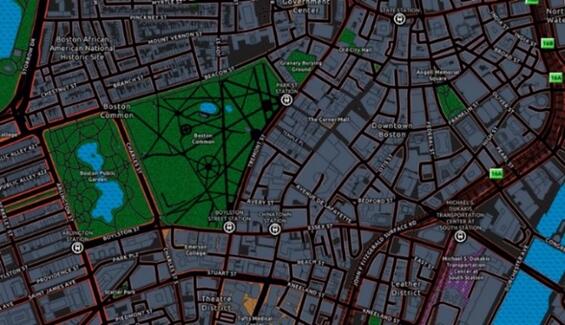
A dark-colored Enhanced Contrast Basemap uses a white and grey backdrop and generally lighter colors to highlight important areas like the waterbodies in the Common and Public Garden.
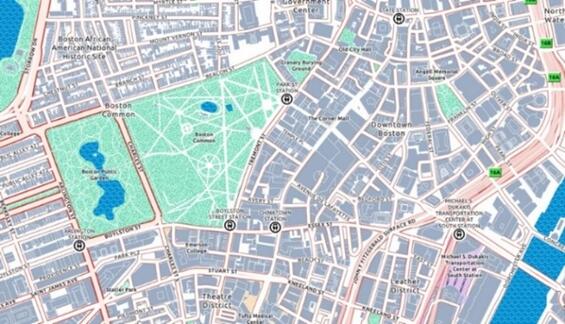
A light-colored Enhanced Contrast Basemap uses a white and grey backdrop and generally lighter colors to highlight important areas like the waterbodies in the Common and Public Garden.
- Use Luminosity layer blending to convert the basemap to greyscale. This works best with the light version.
- Add the basemap to your project and select Enhanced Contrast Base in the Contents Pane.
- Select the Vector Tile Layer ribbon.
- Under Effects, change Layer Blend to Luminosity.
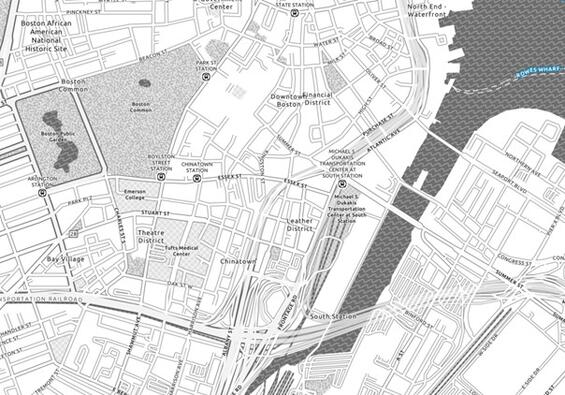
The Luminosity Layer Blend effect can be used to dampen the bright colors of the light Enhanced Contrast Basemap. This strategy can be used to reduce any clash between map layers and the basemap. Unlike layer effects in ArcGIS Online, which allow the user to select a gradient along the greyscale, the Luminosity Layer Blend effect only supports 100% greyscale.
- Be sure to test your map symbology and basemap selection using the Color Vision Simulator tool in ArcGIS Pro.
- Open your web map up in ArcGIS Pro to use the Color Vision Simulator on the View ribbon. This allows you to select a colorblind filter to apply to your screen and see how your map would look to a user who is colorblind.
- This is a great place to start, however this does not test for all variations of color vision deficiencies. Learn more about all types of color vision deficiencies.
- Ensuring that features are distinguishable from one another, and that the color schemes work in these three simulated color deficiencies, generally means that you have made it most of the way to a visually accessible map.
- Colorblindly, a free add-in for the Chrome browser, allows you to simulate all color deficiencies for your web map directly in your browser window. Export your map to a PDF, since Colorblindly can only be used in a web browser.
- Open your web map up in ArcGIS Pro to use the Color Vision Simulator on the View ribbon. This allows you to select a colorblind filter to apply to your screen and see how your map would look to a user who is colorblind.
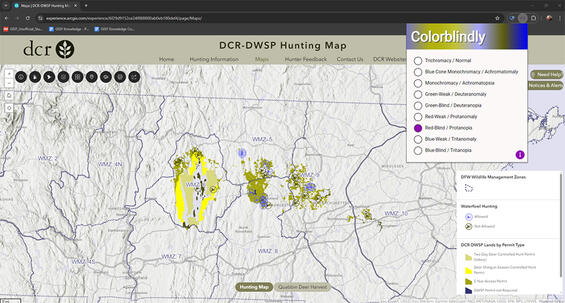
Screenshot demonstrating Colorblindly—a free Chrome browser add-in—is used to toggle between the different types of color deficiencies to simulate what different users may see, better informing design decisions. This example shows what the DCR-DWSP Hunting Map would look like to people with protanopia (blindness to red).
Layers
There are many strategies which can be used to help focus your map. These principles and ideas not only make a map more accessible to people who are neurodivergent, but they can also help clarify the narrative your map is trying to convey to all users.
- Definition queries are the most fundamental way to focus a map on a specific area or topic of interest. By narrowing down the data in a map, it can help to declutter a map and draw attention to the topic or area of interest. Consider the maps below—the goal is to show the percent of poverty within the Houston, TX area. Which map does this better?
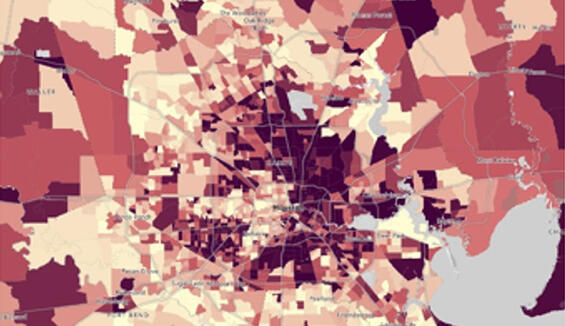
Percent of poverty in Houston, Texas with no filters applied, making the city of Houston difficult to locate.
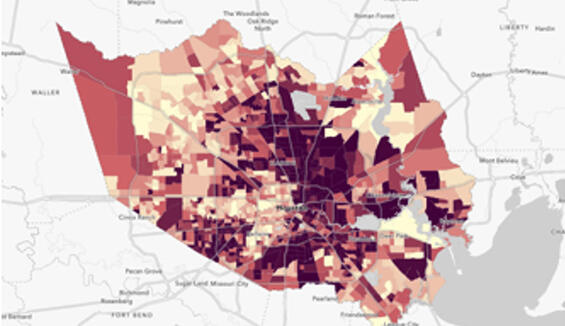
A filtered map of Houston, Texas showing the levels of poverty within the city limit areas.
- Masking can help focus on important content in your map while still allowing surrounding reference features to be visible to provide spatial context. Masking makes portions or areas of symbols invisible to improve legibility of the map. The map author can determine if the masking layer is visible, and if it is, how transparent or opaque it is. Learn more about how to use masking from Esri.
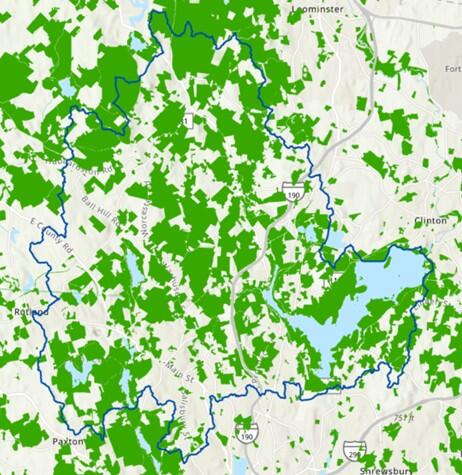
A solid blue line outlines the Wachusett Reservoir Watershed and solid green polygons represent Protected and Recreational Open Space. Technically, this map meets the purpose of showing Protected Open Space in the Wachusett Reservoir Watershed, but it’s difficult to discern the area of interest when relying solely on the solid blue outline to highlight the Wachusett Reservoir Watershed.
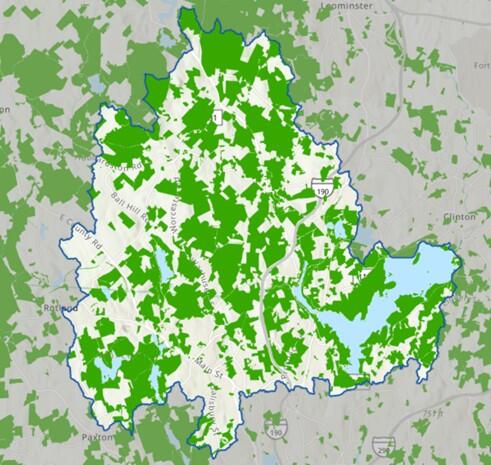
A semi-transparent grey layer partially obscures any Protected Open Space outside of the Wachusett Reservoir Watershed. While this does help to better focus the map on the area of interest, the Open Space outside of the area of interest is still distracting to the eye and detracts from the purpose of the map. If it was necessary to show context for all of the Protected Open Space in the area, then this might suffice.
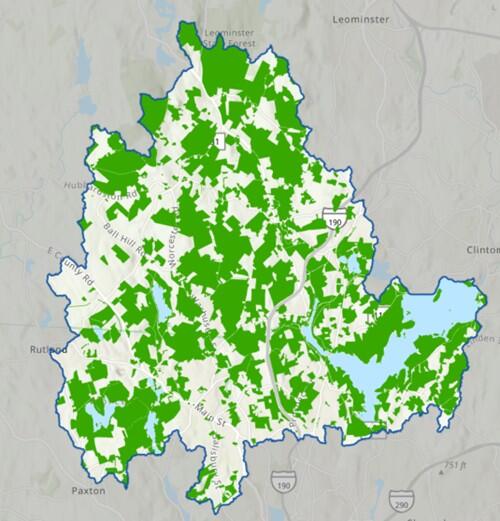
The Protected Open Space layer is now been masked by the semi-transparent grey layer using the "Masking" setting available on the "Feature Layer" ribbon when the Protected Open Space layer is selected in the Contents pane. Enabling masking essentially makes any features that fall under the masking layer invisible within the map. Masking is a great way to focus the map on the area of interest.
- Effects can be used to add effects to a selected layer in a map. Effect options include layer transparency, layer blending, and feature blending. These Effect options can be accessed by selecting a layer in the Contents pane and then by navigating to the "Feature Layer" ribbon. Esri has detailed instructions on working with transparency and blending modes.

Select a layer in the Contents pane to activate the Feature Layer ribbon, shown in the solid red rectangle. From there, you can apply Effects from that section of the ribbon, indicated by the yellow oval.
- Symbol Effects can be used to dynamically alter feature geometry for symbol purposes, allowing for the creation of enhanced symbology within a map. A very simple example of this would be adding arrows to a line feature to indicate flow direction.
Symbology
There are many considerations when it comes to symbology that can impact how accessible a map is. Below are some general guidelines to help in the development of accessible map layer symbology.
- Promote clarity for low vision and color-blindness
- This includes the consideration of contrast ratios, symbol size, use of textures/patterns, and more.
- Use a combination of color, size, shapes, and simple patterns/textures (this is referred to as using multiple visual variables)
- By utilizing color in combination with a simple pattern or varied shape, for example, a user will have an easier time differentiating between symbols on your map.
- The various vector symbols available in ArcGIS Pro provide a variety of options to satisfy this; however, advanced symbology settings provide an even higher level of customization.
- Make intentional and purposeful symbol selections that provide a logical connection to the data and what is being communicated
- Consider simple symbol styles or icons that clearly connect with the data in some way, represent a widely accepted symbol style for a feature, or is consistent with symbol selections in other applications.

Simple symbols for boat ramps, parking areas, and hiking trails are commonly used for map icons.
- Use Esri's colorblind-friendly color ramps (suitable for continuous or discrete data)
- Ensure selected color ramps provide good contrast between data value variation, order, sequential values, and categories shown in the map.
- Esri offers a variety of pre-built colorblind-friendly color ramps directly within ArcGIS Pro. Inferno, Magma, Plasma, and Virdis color systems are colorblind-friendly, according to Esri.
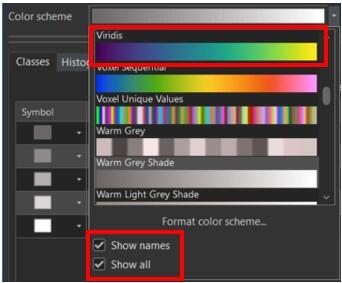
ArcGIS Pro does not provide an easy way to filter for colorblind friendly ramps. To locate Inferno, Magma, Plasma, or Virdis color systems, toggle on the "Show names" and "Show all" options at the bottom of the Color scheme selector.
- Test map symbology using the Color Vision Simulator tool in ArcGIS Pro
- Open your web map up in ArcGIS Pro to use the Color Vision Simulator on the View ribbon. This allows you to select one of three colorblind filters to apply to your screen and see how your map would look to a user who is colorblind. This is a great place to start, however this does not test for all variations of color vision deficiencies. Learn more about all types of color vision deficiencies.
- Colorblindly, a free add-in for the Chrome browser, allows you to simulate allcolor deficiencies for your web map directly in your browser window. This will require that you export your map to a PDF so you can view it in your web browser.
- Consider using the ArcGIS Developer site to develop customized colorblind-friendly ramps that match your map/application's theme and purpose.
- This site allows you to search for customized color ramps using a series of simple choices. Be sure to toggle on option 3 for ‘Colorblind friendly’!
- Use the provided hex codes to build a custom color ramp in your map!
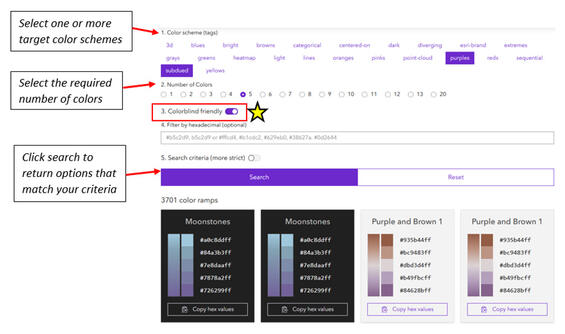
Generating a custom, colorblind-friendly color ramp on the ArcGIS Developer site. First select a color scheme, then select the required number of colors, next toggle on the colorblind-friendly option, and search! Copy hex codes to use the colors in your map.
- Consider the following guidance when making manual color selections for single symbol and/or color ramps within your map. Review Esri's blog post for more detailed information, including example images. Generally,
- Working with reds and oranges:
- Red column: go down the column vertically when choosing colors which are next to one another. Do not choose colors which are side-by-side horizontally as they are more difficult to distinguish between.
- Orange column: when pairing orange with red, choose one orange and one red that are in the same row (horizontally). Making color selections diagonally in the red and orange columns can cause issues for people with colorblindness.
- Working with yellows and greens:
- Do not choose colors which are side-by-side in the same row vertically—skip every other value. Do not choose colors which are side-by-side horizontally, as they are more difficult to distinguish between.
- Select 2–3 colors diagonally.
- Working with blues and purples:
- Select 3–4 colors in one row horizontally, ensuring you skip one color in the two center columns.
- Select 2–3 colors diagonally.
- If choosing colors in the same column (vertically), skip every other value.
- Working with greys and black: skip every other color, no matter who is viewing the map. When selecting colors next to one another in the grey column, there can be considerable issues distinguishing between colors for anyone.
- Working with reds and oranges:
Labels
The use of labels within a map can help to call out key features, can serve as reference for orienting yourself in space, can be used to provide key statistics, and more. There are a few best practices to keep in mind when designing effective and accessible labels.
- For map symbology to be fully accessible under WCAG 2.1 A and AA standards, your map must label its key features, effectively "dual encoding" the information in your map. This is the practice of encoding information through both visual map symbology and text items which communicate the same aspects of the data in concert with one another. If map data is provided in an alternative format, then only label essential information.
- Reduce use of jargon—use plain language and eliminate (or limit) the use of acronyms.
- Typography for the key features of your map should meet the following text sizes and contrast ratios:
- 9 px regular = 4.5:1 minimum contrast ratio
- 14 px bold = 3:1 minimum contrast ratio
- 18 px regular = 3:1 minimum contrast ratio
- Sans serif typography is best. Examples include Open Sans, Arial, Helvetica, or find more sans serif fonts.
- Limit use of labels to essential information and key features so as not to overwhelm the map.
- Less is more.
- Make sure to label your key layers to dual-encode their meaning to viewers. Labelling contextual/non-key layers is a matter of your own choice.
- It is important to make discerning choices when labeling as over-labeling can decrease the accessibility of your map by cluttering it with competing text.
- Use halos to increase contrast against underlying data and/or the basemap.
- Ensure you have good contrast between your font color and your halo color.
- Aim for a 4.5:1 contrast ratio!
- Reference the above guide on how the minimum required contrast ratios change depending on the font size you choose.
- If you choose to opt out of using halos to ensure adequate label contrast, make sure that the label text fill color achieves the relevant contrast ratio when measured against the darkest possible color that it could draw on top of in your map.
- Ensure you have good contrast between your font color and your halo color.
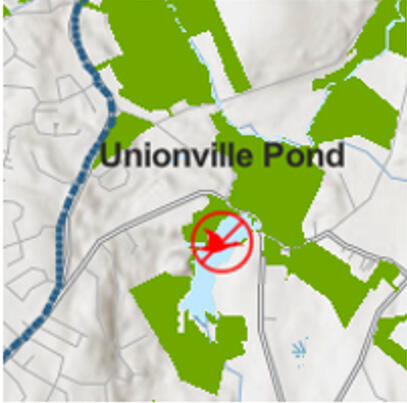
The label of "Unionville Pond" on this map has black text and no halo, making it difficult to see over the map.
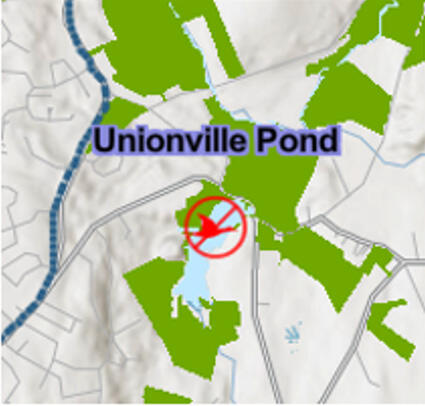
In this example, the label "Unionville Pond" has a blue/purple halo behind the black text. The contrast with the map underneath makes the label more visible, but the actual words are still difficult to read.
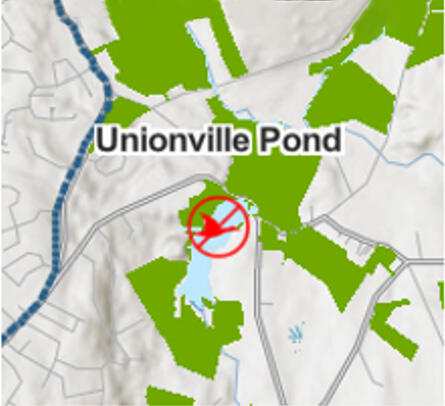
Here, the label "Unionville Pond" has a white halo, making the black text stand out from the map underneath. This makes the label much more clear to see.
- Consider editing the basemap's reference to increase readability of labels (size, color, and font).
- It is not always possible to label all layers in a map. In fact, trying to label everything will likely result in an inaccessible and illegible map. Instead, focus on adding meaningful labels to only the key data layers that answer your users' questions. If there are multiple key data layers, consider which are the most important to dual-encode.
Legend
Design the map legend to reinforce the user's understanding of the content being displayed in map. This can be done through clear layer and/or group layer names and the use of descriptive feature Types.
- Reduce use of jargon—use plain language and eliminate (or limit) the use of acronyms.
- Remove underscores that may be present in the layer name.
- Add descriptions to any coded values that may be present when a layer is mapped by Types.
- If using symbol groups, provide each grouping with a unique and descriptive name.
- Consider avoiding complex map symbology (such as bivariate symbology) when creating maps—these symbology types introduce a cognitive burden to readers that is rarely necessary to create accurate maps of your data.
- Ensure the legend is easily distinguishable from the map or other cartographic elements if there is overlap.
- Use a border and background for your legend to provide contrast between the legend and other map elements.
- Use X and Y gap settings to ensure the border has separation from text to facilitate easy reading.
- Ensure legend contains only relevant information
- Synchronize layer visibility with that of the map. This will ensure only visible layers, or those turned on in the Contents pane, appear in your legend.
- Enable option to only show features visible in the map extent. Showing layers in the legend when features from the layer are not visible in the map extent may cause unnecessary confusion.
- Configure legend arrangement settings that:
- Select an appropriate fitting strategy
- Set a minimum font size no less than 12 pt.
- Text settings: Text and legend background color passes a contrast checker.
- 9 pt regular = 4.5:1 minimum contrast ratio
- 14 pt bold = 3:1 minimum contrast ratio
- 18 pt regular = 3:1 minimum contrast ratio
- Sans serif typography is best. Examples include Open Sans, Arial, Helvetica. More examples of sans serif fonts are on Wikipedia.
- Visual presentation of block of text:
- Text is not justified.
- Line spacing (leading) is at least space-and-a-half within paragraphs, and paragraph spacing is at least 1.5 times larger than line spacing.
- Text can be resized without assistive technology up to 200% in a way that does not require users to scroll horizontally to read a line of text on a full-screen window. Do not use all bolded text for each item in the legend. Make logical choices, such as a layer name being bolded, while labels are regular typography (no emphasis).
Testing for Accessibility
Conducting final accessibility testing is an important part of ensuring a map is accessible to all readers. This should be completed before exporting the map from ArcGIS Pro to a PDF. While you should complete these tests as you go, it is important to do one last test of the final map layout prior to export.
ArcGIS Pro has a built-in tool called the Color Vision Deficiency Simulator which can be accessed from the View ribbon. This allows you to select a colorblind filter to apply to your screen and see how your map would look to a user who is colorblind. This is a great place to start, however this does not test for all variations of color vision deficiencies. Learn more about all types of color vision deficiencies.
Ensuring that features are distinguishable from one another, and that the color schemes work in these three simulated color deficiencies, generally means that you have made it most of the way to a visually accessible map.
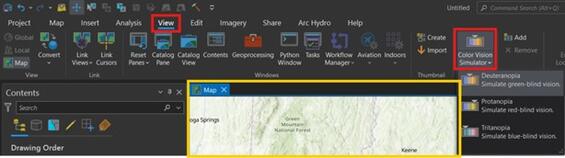
Find the Color Vision Simulator within the View ribbon to test how your map appears for three types of colorblindness. This filter will update the map area (yellow rectangle above) to show how all layers, labels, and the basemap would look to a reader who is colorblind. Use these filters to update symbology so that your map is easily read by everyone. This should be an iterative process.
To test for all types of color deficiencies, export your map to a PDF and use Colorblindly, a free add-in for the Chrome browser, to simulate deficiencies for your map directly in your browser window. This process should be done iteratively as you develop your map to ensure that design decisions are well-founded.
Also consider reviewing your final layout at 100% scaling to ensure that all map title, labels, legend items and other surrounding map elements (e.g. charts, credits, other blocks of text, etc.) are readable and clear. While users accessing digital documents can increase the "zoom" manually, doing one final review to ensure the map looks good at full size is a good idea.
Creating Accessible PDF Maps in ArcGIS Pro
Once your map layout has been created using the Best Practices outlined above, it is time to put the finishing touches on your map to ensure that all the accessibility features have been implemented. These steps must be completed prior to export.
Add Alt Text to Layout Elements
Alt Text (or alternative text) is descriptive text used to describe graphics such as the map, images and charts included within the layout. The alt text should stand in place for those elements and describe the items so a reader can understand the information without seeing it. Other graphic elements which may be included in a layout, such as scale bars, north arrows, legends and graphic shapes (e.g. rectangles, lines, etc.), are tagged as decorative items and do not receive alt text. These decorative items do not require alt text descriptions to help further understanding of the map.
To add alt text to any map(s), image(s), and chart(s) included in your layout:
- Select your Map Frame in the Contents pane.
- Right-click to open the context menu and select Properties. This opens the Element pane.
- Expand the Accessibility section and add alt text.
- The alt text should be comprehensive and serve as an equivalent experience to the visual. Explain the information, patterns, trends and purpose of the map being shown.
- Repeat these steps for any other images and/or charts included in your layout.
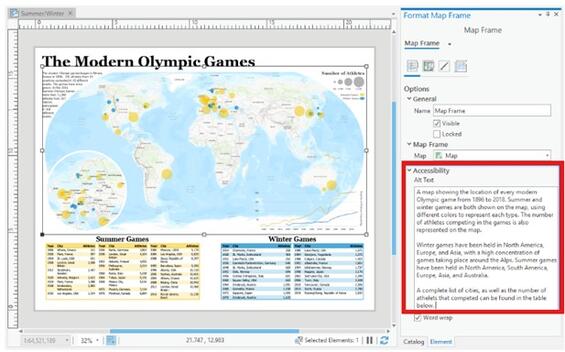
This example, from Esri, shows where and how to author alt text for the Map Frame within your layout. The alt text for the map is highlighted in the bottom right section and is highlighted using a thick red rectangular outline. Notice how comprehensive the description of the map is: "A map showing the location of every modern Olympic game from 1896 to 2018. Summer and winter games are both shown on the map, using different colors to represent each type. The number of athletes competing in the games is also represented on the map. Winter games have been held in North America, Europe, and Asia, with a high concentration of games taking place around the Alps. Summer games have been held in North America, South America, Europe, Asia and Australia. A complete list of cities, as well as the number of athletes that competed can be found in the table below."
Enable Accessibility Tags and Complete Metadata
Before exporting your map to PDF, you must enable accessibility tags. These are not enabled by default, so it is important to take this step before exporting your map. This is also when you will complete your PDF Metadata, which is another step required to make your PDF map accessible. This information is used by screen readers to provide a better user experience and to support document search.
To enable accessibility tags and PDF metadata for your map:
- From the Share ribbon, select Export.
- Within the Export pane (on the right), set the Export type to PDF.
- Configure additional export settings under Properties as needed.
- At the top of the Export pane, select the Accessibility option.
- Check the box to enable accessibility tags.
- Complete the PDF metadata – be thorough.
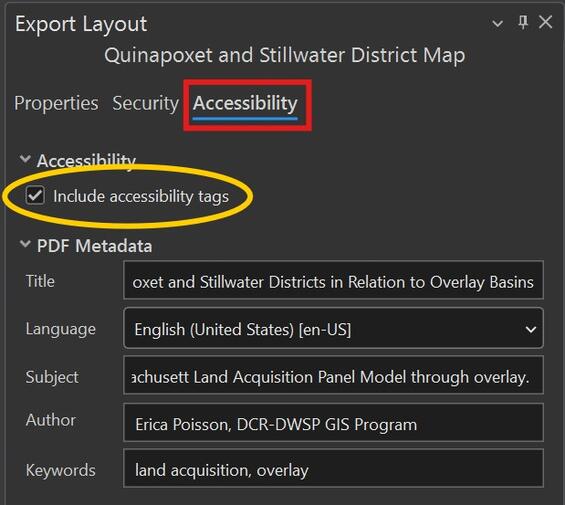
Within the Export dialog, click the Accessibility menu to see accessibility options (highlighted by the thick red rectangle). Enable accessibility tags (highlighted by the thick yellow oval) and complete PDF metadata before exporting a PDF map from ArcGIS Pro.
Document Design Considerations for Maps and Accessibility
Depending on the type of document, consider placing the map, description, and data together within the document (e.g. the map and description go on one page, while the data goes on the following page). This placement strategy might be most appropriate for certain types of reports, or when the data to be included as a table is for a smaller dataset (e.g. a table that can fix on one page of the document).
When the data table is too large or complex to be included, ensure that a good description is provided of the map message within the body text and caption. This description should be placed immediately after the map. The map's alternative text can simply refer to the figure number and type of map. Inclusion of additional information within the alternative text will depend on how much other information is provided around the map. If there is limited descriptive information around or below the map, consider writing more detailed alternative text.
Alternative text can also refer the reader to a data table or list included elsewhere in the document, like a longer-format table that is included in an Appendix, for example. Provide an in-document link for the best possible user experience and ensure that your table follows best practices if it spans multiple pages. Another alternative is to provide readers with a link to a website that provides the reader with additional map details, descriptions, or data in alternative formats (e.g. as a CSV).
Finally, consider listing a human point of contact that a reader can reach out to with questions or for assistance. Assistance could include providing the map in an alternative format or merely guiding a caller through the map's content. Departments should decide if providing map data in an alternative format or a human point of contact would be more effective.
Text—Alt Text, Surrounds, Map Descriptions, and More
This section covers general text requirements and best practices. Review specific element sections in this document for more-pointed text requirements. Visit the Commonwealth's Digital Accessibility Fundamentals page on Content and Typography for general text size and style information.
- Use at least 16 px.
- Large scale text (at least 24 px or 19 px bold) passes a contrast checker.
- Incidental text (text that are pure decoration, that are not visible to anyone, or are part of a picture that contains significant other visual content) have no contrast requirements. Note when text that is part of a logo or brand name has no contrast requirements.
- Ability to resize text, up to 200%, is supported without loss of content or functionality.
- Visual presentation of block of text:
- Text is not justified.
- Line spacing (leading) is at least space-and-a-half within paragraphs, and paragraph spacing is at least 1.5 times larger than line spacing.
- Text can be resized without assistive technology up to 200% in a way that does not require user to scroll horizontally to read a line of text on a full-screen window.
- Images of text are only used for pure decoration or where a particular presentation of text is essential to the information being conveyed. Logotypes are considered essential.
- Unusual Words: A mechanism is available for identifying specific definitions of words or phrases used in an unusual or restricted way, including idioms and jargon.
- Abbreviations: A mechanism for identifying the expanded form or meaning of abbreviations is available.
- Reading Level: aim for grade 9 as best you can.
- Pronunciation: A mechanism is available for identifying specific pronunciation of words where the meaning of the words, in context, is ambiguous without knowing the pronunciation.
Checklist
-
Static Digital Map Accessibility Checklist, Open PDF file, 192.79 KB (English, PDF 192.79 KB)
| Date published: | April 23, 2026 |
|---|